
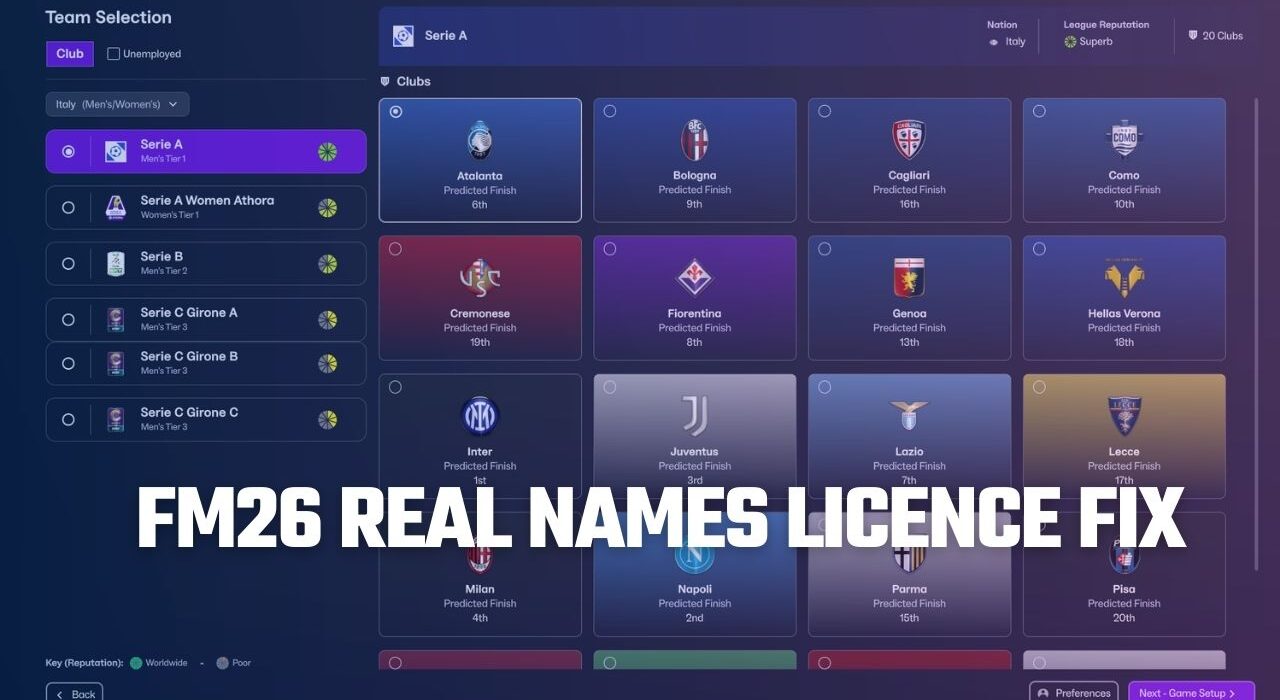
After the release of the FM26 winter transfer update (version 26.2) on March 9, one of the first things many players start thinking about is the license fix patch for Football Manager 26.
Although Sports Interactive continues to increase the number of officially licensed leagues every year, there are still several leagues, competitions, and teams that appear in the game with incorrect or generic names due to licensing restrictions. That’s why the Football Manager community continues to rely on license fix patches to restore real names.
Before moving on to the installation guide, we would like to thank the creators who have maintained this essential patch for years.
Special thanks to DanielFM, who provided license fix patches for the Football Manager series until FM2015, and to TheNotoriousPr0, who later took over the project and has continued maintaining the patch ever since.
What Does the FM26 License Fix Patch Do?
As many of you already know, due to licensing limitations in Football Manager, some elements in the game appear differently from their real-life counterparts. These may include:
Certain national teams
Players in those national teams
League names
Competition names
The FM26 License Fix Patch acts as a solution to these issues by restoring the real-world names and details.
Another advantage of this patch is that most of the changes do not require you to start a new save, meaning you can apply the fix and continue your existing career in many cases.
Full installation details and steps are explained below.
What Does the FM26 License Fix Patch Correct?
The FM26 License Fix Patch for Football Manager 26 restores many names that appear incorrectly in the game due to licensing restrictions.
After installing the patch, the following elements will be corrected:
✔️ All playable club names from every continent
✔️ Major league club names
✔️ Non-playable top European league club names
✔️ Most smaller league names
✔️ All continental and national competition names
These changes help make the game feel much closer to the real-world football structure.
Frequently Asked Questions
Why do Brazilian clubs appear with three-letter names? How can I fix it?
This patch does not change Brazilian club names in your current save.
If the three-letter Brazilian club names bother you, you will need to start a new career after installing the patch for the changes to take effect.
⚠️ This limitation mainly applies to Brazilian clubs.
In Serie A, Inter appears as “Blu-Neri”. Does the patch fix this?
Yes.
By installing the FM26 license fix patch, the licensing issue in Serie A will be corrected and Inter will appear with its real name instead of “Blu-Neri.”
This is one of the most noticeable fixes included in the patch.
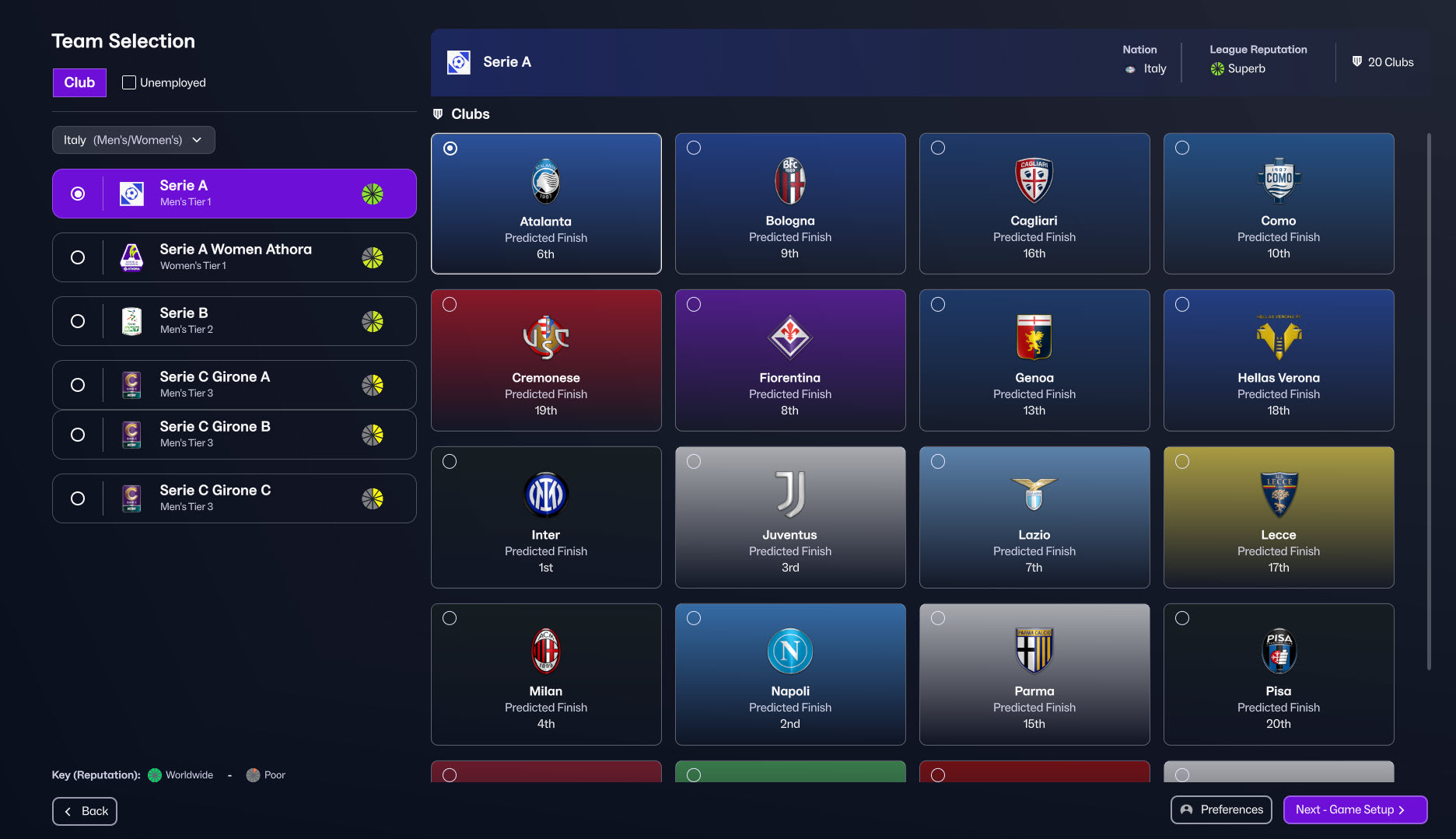
FM 2026 License Patch Installation
1. Exit the game and Download the license patch.
2. Locate the “2620” folder on your computer.
Windows:
STEAM
\Program Files (x86)\Steam\steamapps\common\Football Manager 26\shared\data\database\db\2620\
EPIC GAMES
\Program Files\Epic Games\FootballManager26\ shared\ data\ database\ db\ 2620\
Match:
STEAM
/Users/[username]/ Library/ Application Support/ Steam/ steamapps/ common/ Football Manager 26/ fm.app/ Contents/ PlugIns/ game_plugin.bundle/ Contents/ Resources/ shared/ data/ database/ db/ 2620/
EPIC GAMES
/Users/Shared/ Epic Games/ FootballManager26/ fm.app/ Contents/ PlugIns/ game_plugin.bundle/ Contents/ Resources/ shared/ data/ database/ db/ 2620/
3. Open the “lnc” file. Open the “all” file located inside it. A screen like the one below will appear:
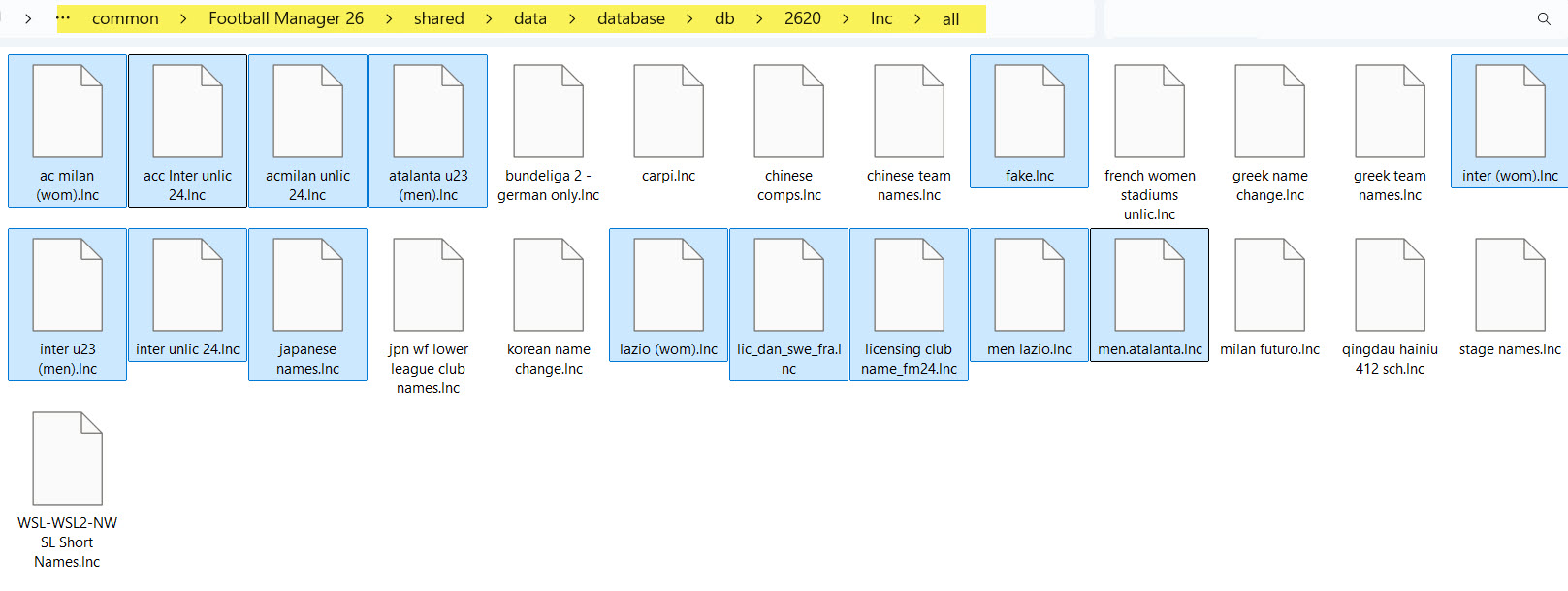 4. You need to delete the following 14 files selected in the screenshot:
- ac milan (wom).lnc
- acc Inter unlic 24.lnc
- acmilan unlic 24.lnc
- atalanta u23 (men).lnc
- fake.lnc
- inter (wom).lnc
- inter u23 (men).lnc
- inter unlic 24.lnc
- japanese names.lnc
- lazio (wom).lnc
- lic_dan_swe_fra.lnc
- licensing club name_fm24.lnc
- men lazio.lnc
- men.atalanta.lnc
5. Copy the “FM26 Fix by FMScout” and “FM26 Club Names by FMScout” files from the downloaded file here.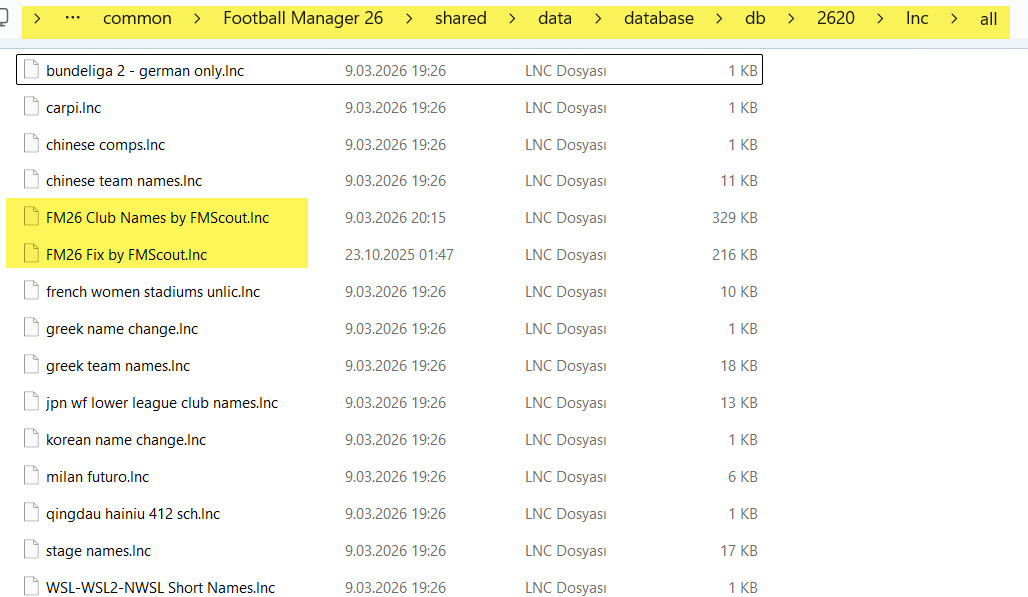
6. Go back to the “2620” folder and this time enter the “edt” file. Inside the “edt” file, enter the “permanent” file. The view should look like this:
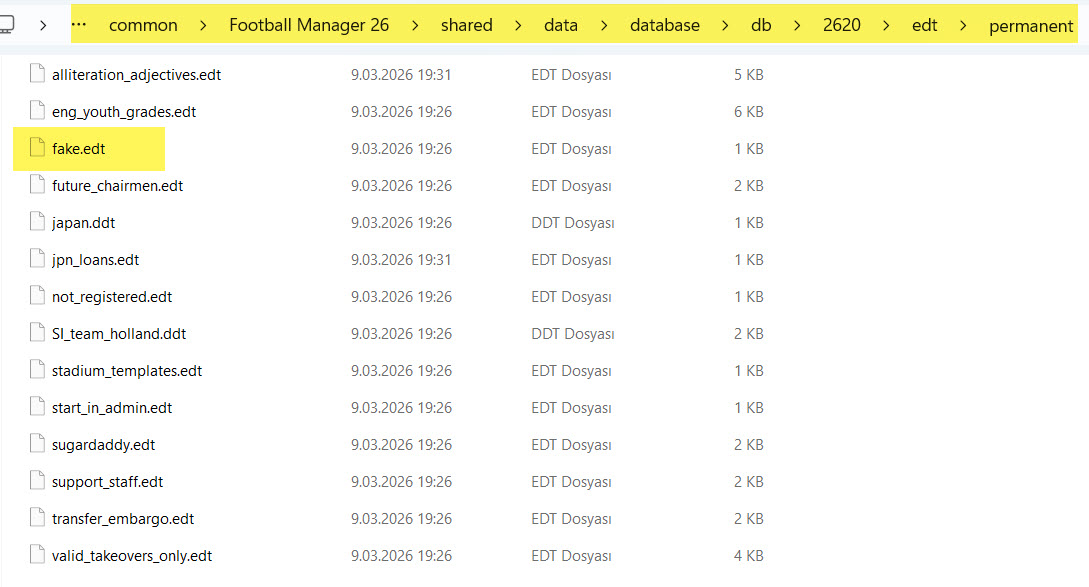
7. Delete the “fake.edt” file from the “permanent” folder as shown in the screenshot above.
8. Go back to the “2620” folder. This time, navigate to the “dbc” file. Open the file. From there, go to the “permanent” folder. The view should look like this:
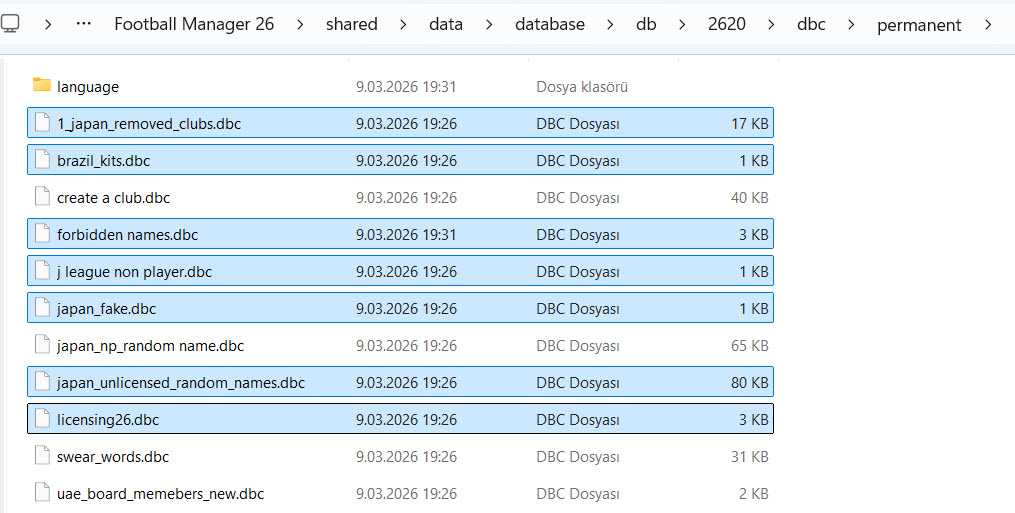
- 1_japan_removed_clubs.dbc
- brazil_kits.dbc
- forbidden names.dbc
- j league non player.dbc
- japan_fake.dbc
- japan_unlicensed_random_names.dbc
- licensing26.dbc
This will resolve the problem with Brazilian club names.
10. Finally, go to the “permanent” folder inside the “dbc” folder in the “2620” folder and delete the following 2 files inside the “language” folder:
- Licensing2.dbc
- Licensing2_chn.dbc

11. Open the game and continue the fun.