
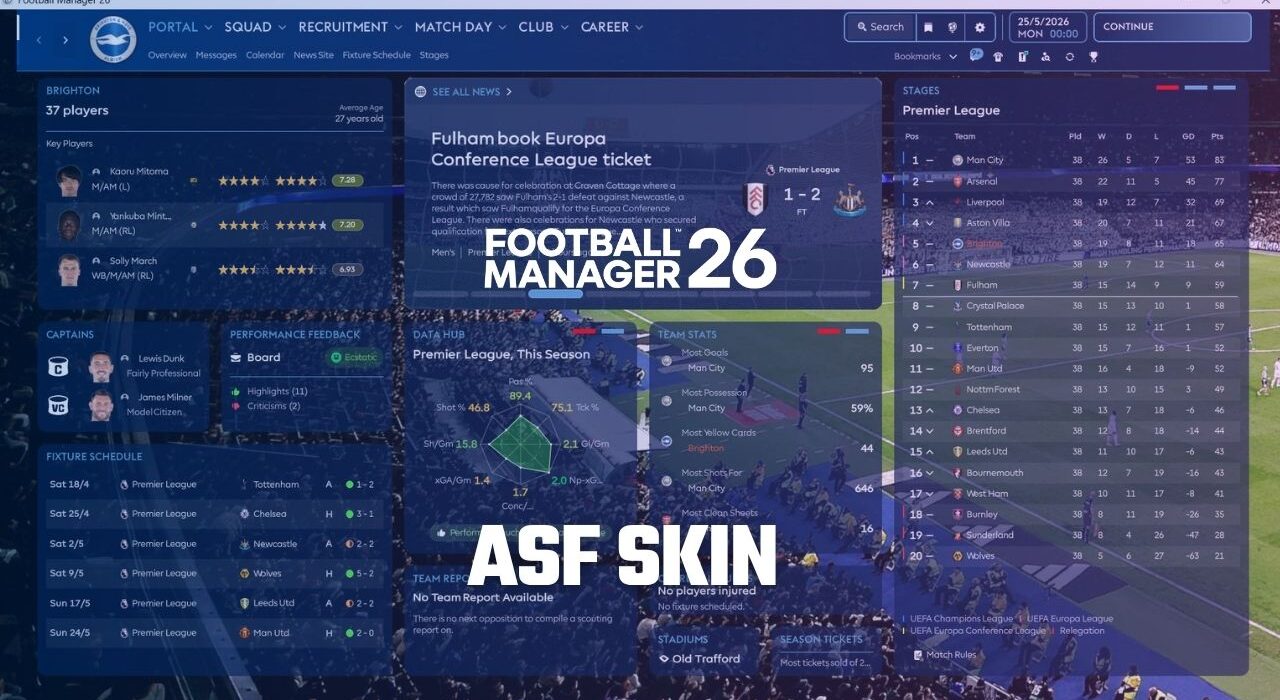
We continue our Football Manager skin series with the ASF Skin, which has been updated after the winter transfer update for Football Manager 26. The FM26 ASF Skin aims to attract Football Manager players with its unique interface and design elements.
Here are the details and installation steps of the FM26 ASF Skin.
Interface skins are among the most popular customization options in the Football Manager community. They allow players to redesign the game’s interface and improve usability during long career saves.
Before moving on to the installation steps — which differ slightly from the standard skin installation process commonly used in Football Manager titles — let’s take a look at the screenshots and key features of the ASF Skin.
Update (17 March 2026)
After the winter transfer update released on March 9, the ASF Skin also became one of the themes updated for version 26.2 of Football Manager 26.
With this update, the ASF Skin is now fully compatible with the latest FM26 version, allowing players to use the theme smoothly with the updated match engine and interface changes introduced in the 26.2 patch.
Screenshots
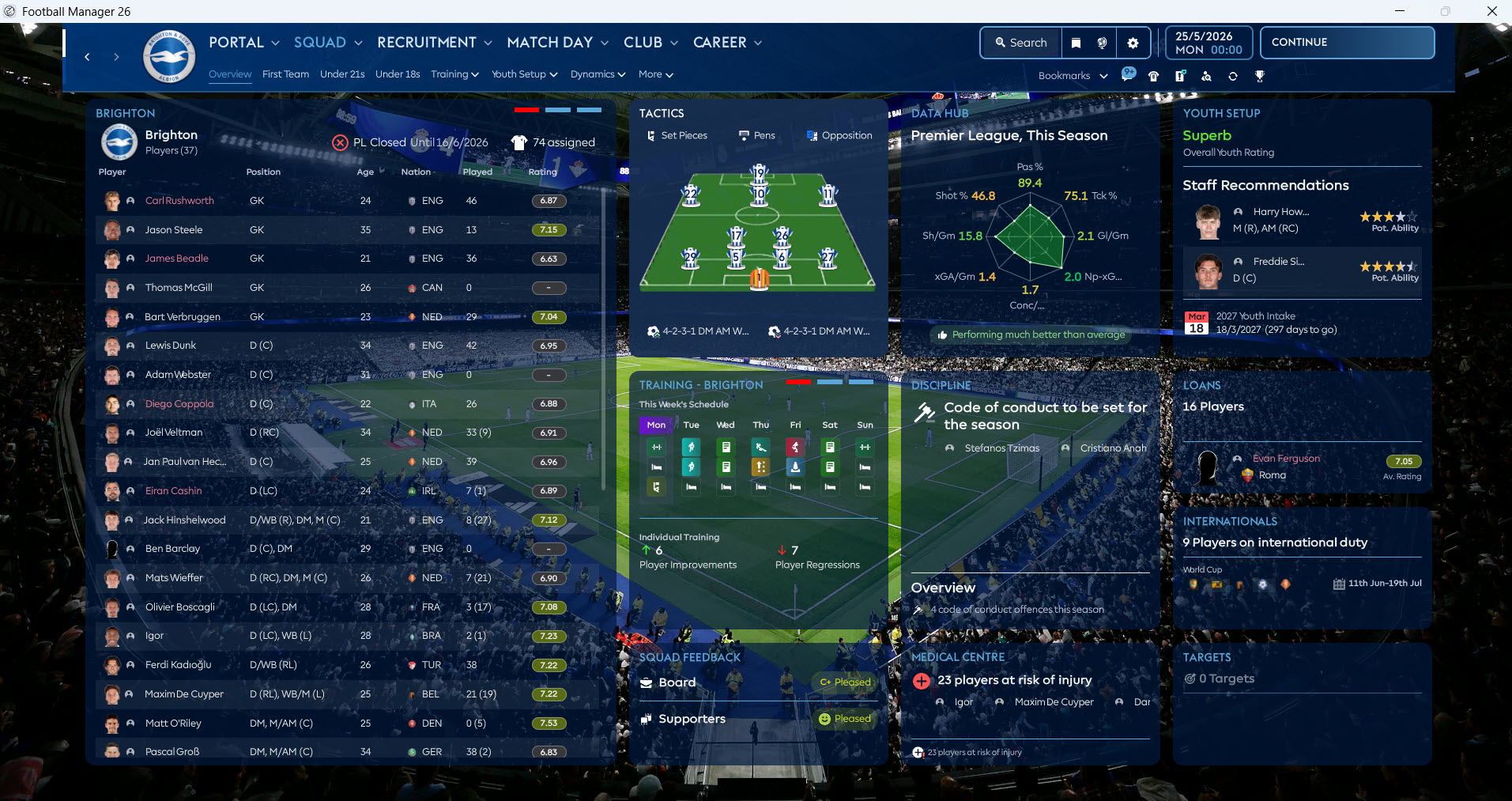
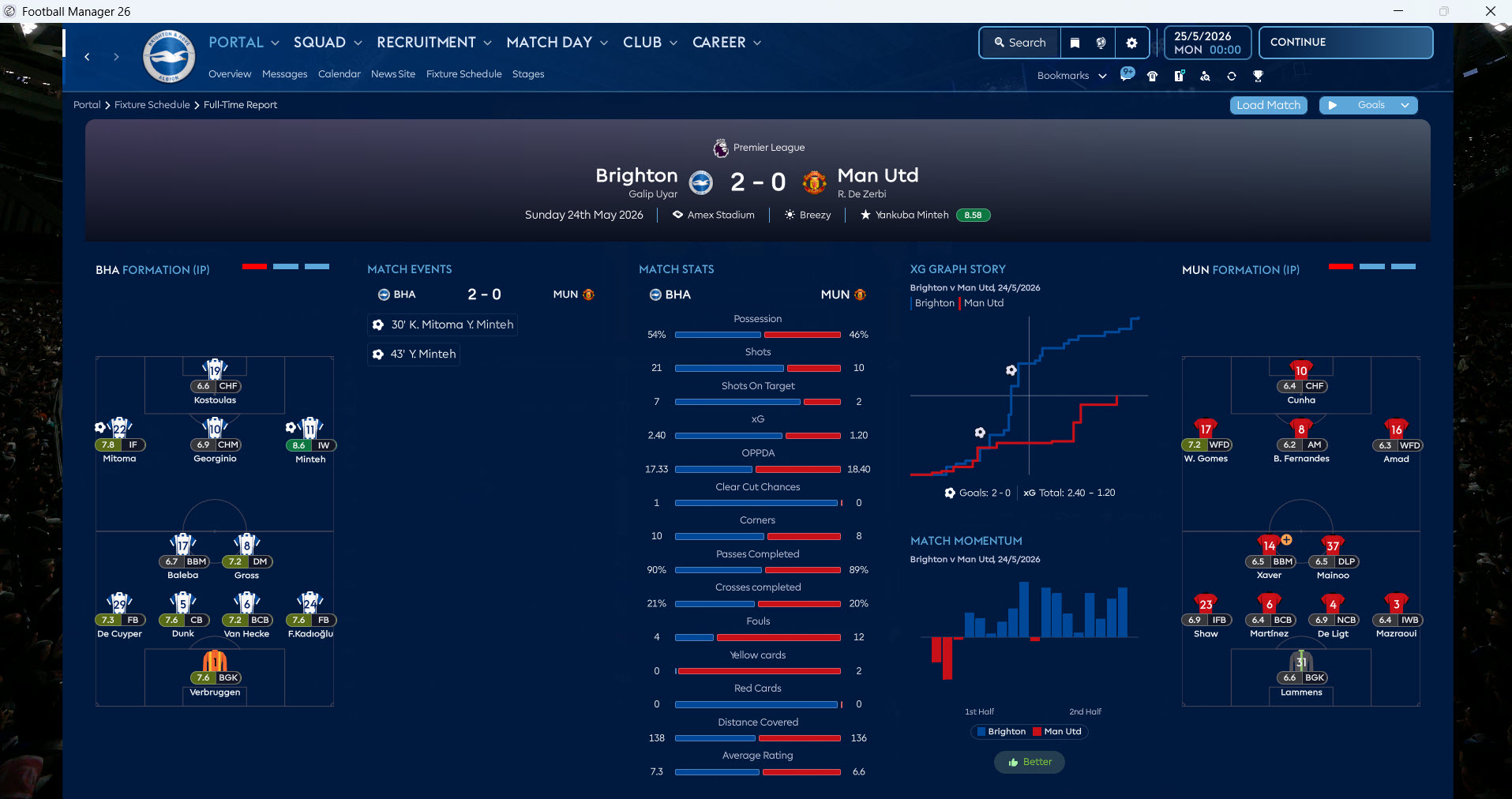
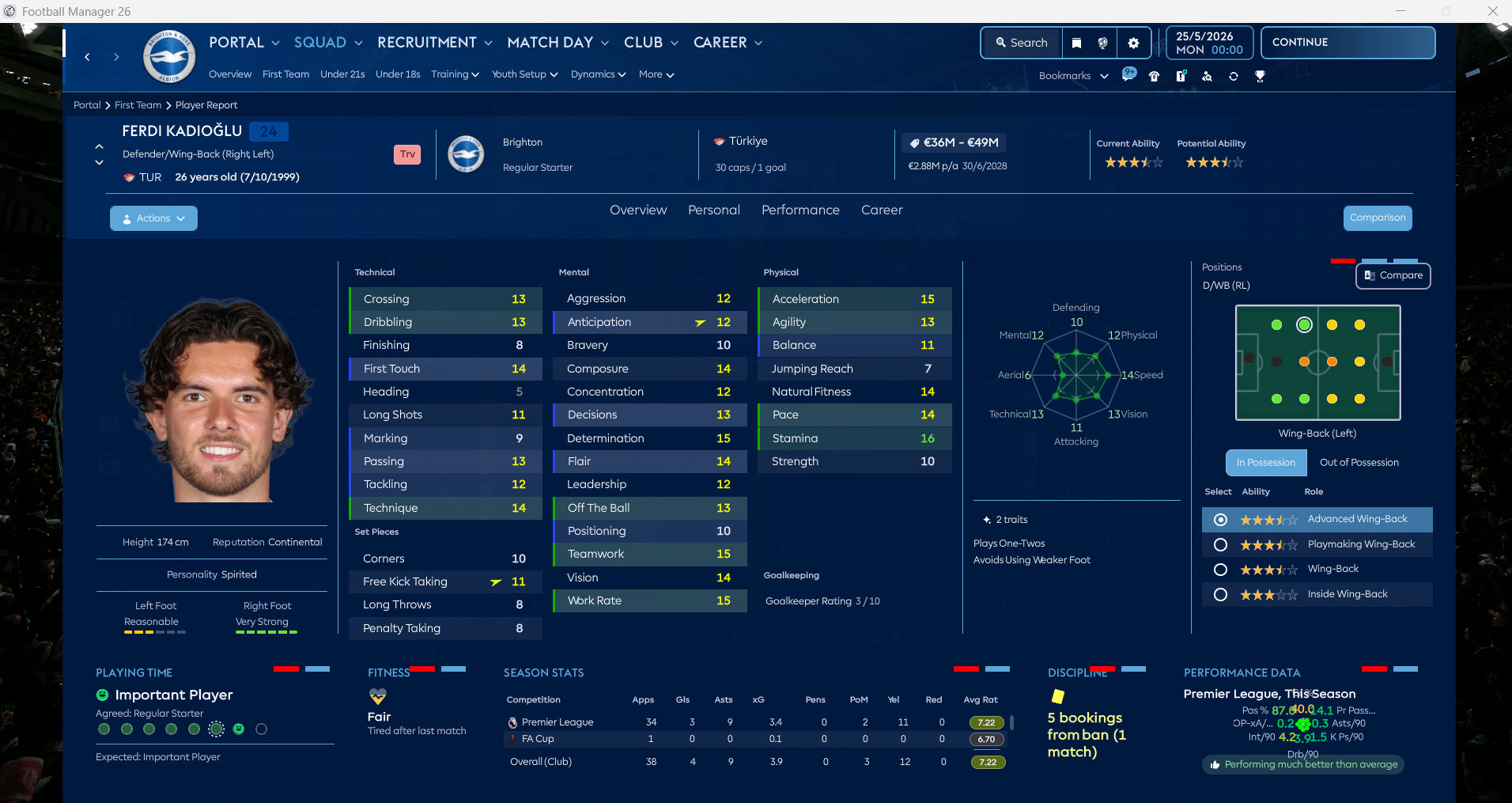
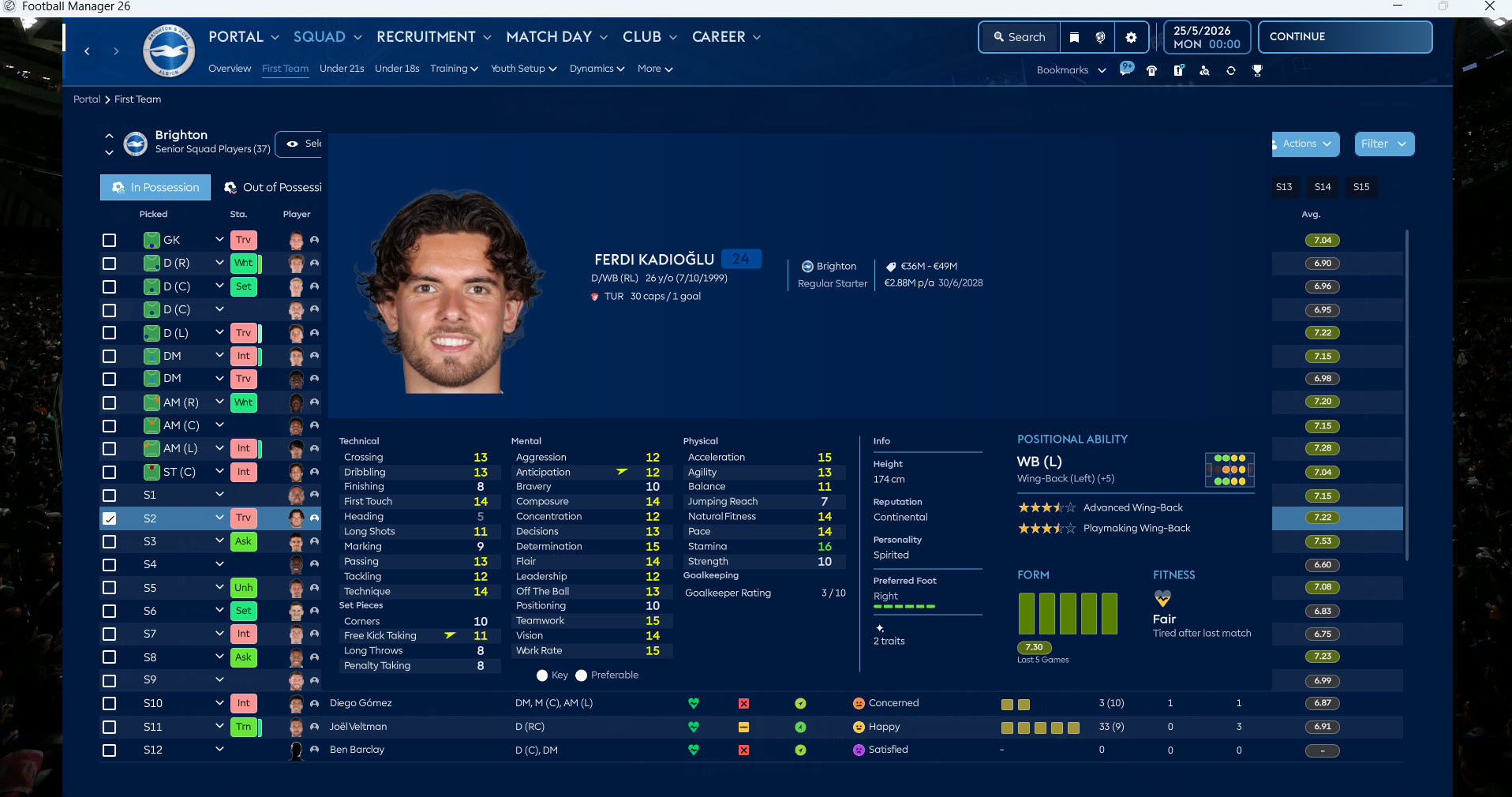
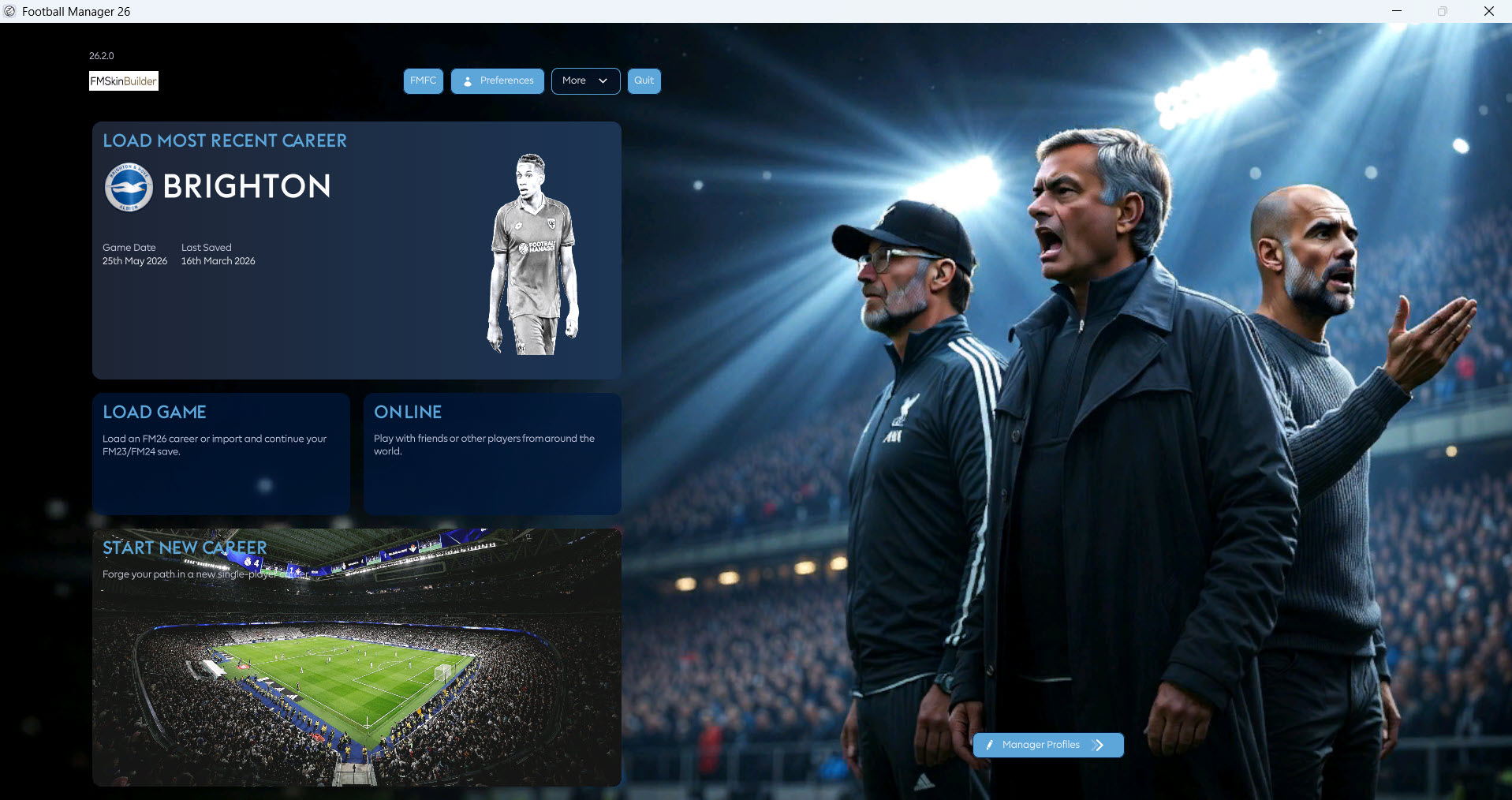
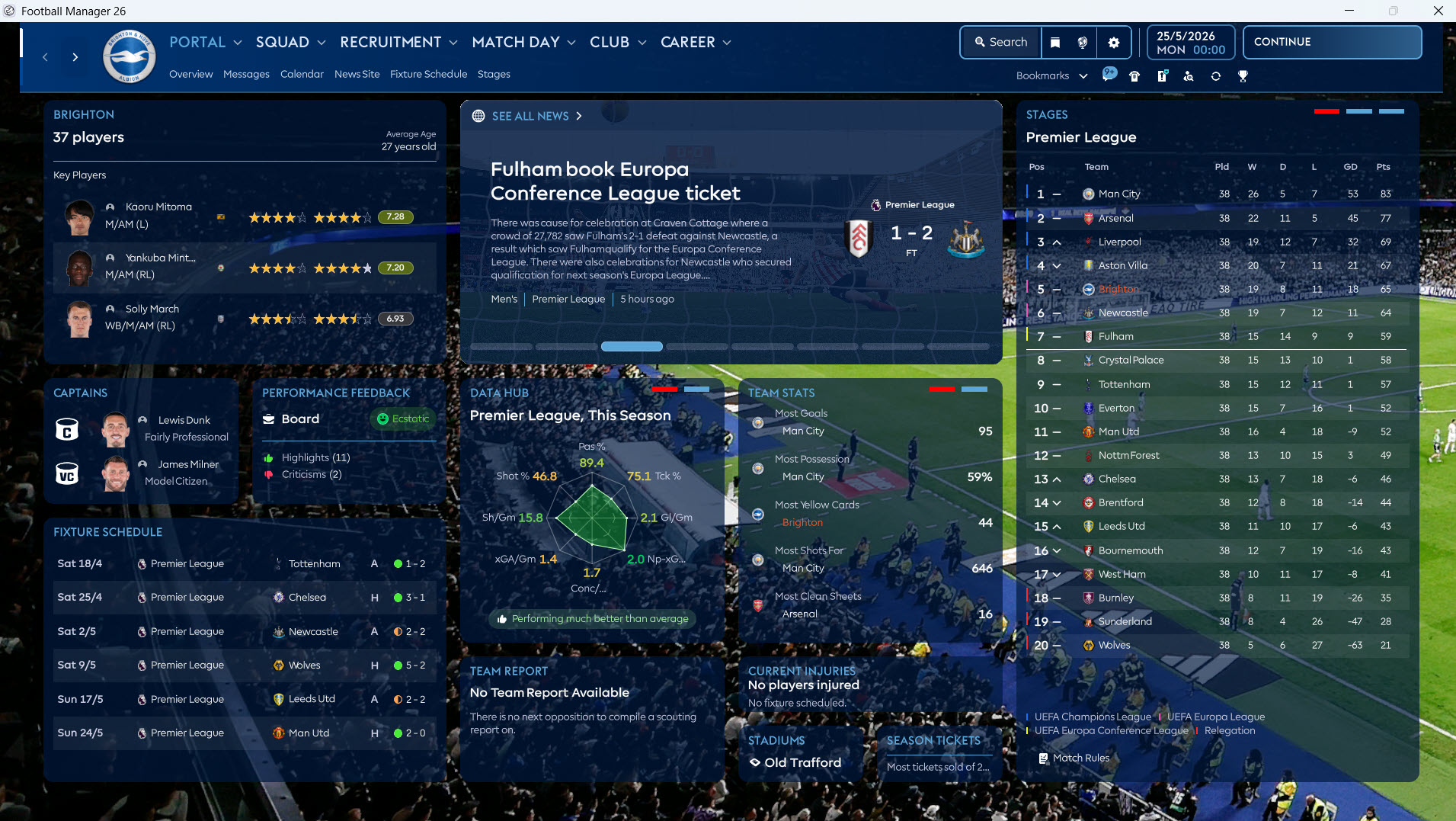
FM26 Skin Installation Steps (Dark Skin)
1) First, download the skin.
Click here to download the skin.
Extract the downloaded theme to a folder using a file extraction program such as WinRAR.
2) You will have a folder named ASF Skin. Since this article explains manual installation, completing all steps correctly is important for using the theme without any problems.
2) You will have a folder named ASF Skin. Since we will be explaining the manual installation in this article, it is important to complete all steps correctly to use the theme without any problems.
Inside the ASF Skin folder are:
- ASF skin FM26 Patch 26.2.0
- Faster Startup
- Match scoreboard left
- Player photos – UABEA Polygon
First, go inside the ASF Skin FM26 Patch 26.2.0 folder.
Go into the Packages folder inside this folder.
3) When you enter the Packages folder, you will find 20 different files.
- stadium-ads_assets_all.bundle
- ui-backgrounds_assets_.bundle
- ui-backgrounds_assets_common.bundle
- ui-fonts_assets_fmuniverse.bundle
- ui-fonts_assets_production.bundle
- ui-iconspriteatlases_assets_1x.bundle
- ui-iconspriteatlases_assets_2x.bundle
- ui-iconspriteatlases_assets_3x.bundle
- ui-iconspriteatlases_assets_4x.bundle
- ui-mainmenu-assets_assets_all.bundle
- ui-prematch-backgrounds_assets_common.bundle
- ui-styles_assets_common.bundle
- ui-styles_assets_default.bundle
- ui-styles_assets_match.bundle
- ui-tableviews_assets_all.bundle
- ui-tactics_assets_all.bundle
- ui-textures_assets_all.bundle
- ui-tiles_assets_all.bundle
- ui-tileslayouts_assets_all.bundle
- ui-widgets_assets_all.bundle
We will now replace these files with the files located in the theme folder where the game is installed.
4) You need to find the file location where the game’s theme is located.
Windows Steam
Drive Where Steam is Installed (such as C, D or E)\Program Files (x86)\Steam\steamapps\common\Football Manager 26\fm_Data\StreamingAssets\aa\StandaloneWindows64
Windows Epic Games
Drive Where Steam is Installed (such as C, D or E)\Program Files\Epic Games\Football Manager 26\fm_Data\StreamingAssets\aa\StandaloneWindows64
Mac Steam ~/Library/Application Support/Steam/steamapps/common/Football Manager 26/fm.app/Contents/Resources/Data/StreamingAssets/aa/StandaloneOSX
Mac Epic Games~/Library/Application Support/Epic/Football Manager 26/fm_Data/StreamingAssets/aa/StandaloneOSXUniversal
You can also find the game’s theme file by searching for “ui-styles_assets_default” directly on your C, D, and E drives.
The address of the file we need is shown in the screenshot. In my case, it’s installed in the Z folder and is located at Z:\Steam\steamapps\common\Football Manager 26\fm_Data\StreamingAssets\aa\StandaloneWindows64
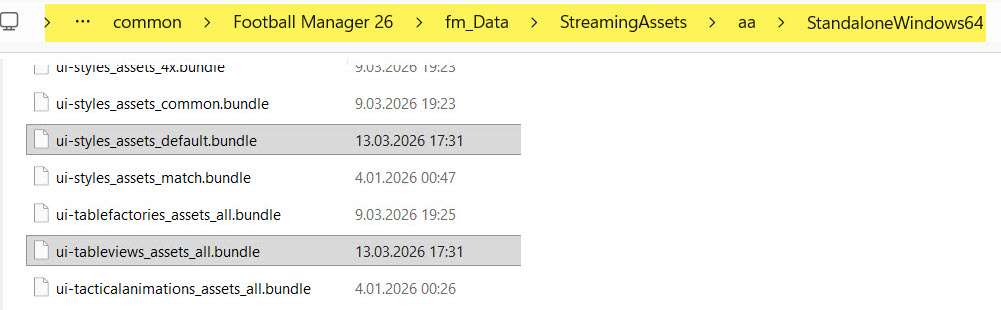
6) It’s time to copy the 20 files we downloaded to the location where the game’s theme is installed.
We go to E:\Steam\steamapps\common\Football Manager 26\fm_Data\StreamingAssets\aa\StandaloneWindows64, which is where the theme file is located.
- stadium-ads_assets_all.bundle
- ui-backgrounds_assets_.bundle
- ui-backgrounds_assets_common.bundle
- ui-fonts_assets_fmuniverse.bundle
- ui-fonts_assets_production.bundle
- ui-iconspriteatlases_assets_1x.bundle
- ui-iconspriteatlases_assets_2x.bundle
- ui-iconspriteatlases_assets_3x.bundle
- ui-iconspriteatlases_assets_4x.bundle
- ui-mainmenu-assets_assets_all.bundle
- ui-prematch-backgrounds_assets_common.bundle
- ui-styles_assets_common.bundle
- ui-styles_assets_default.bundle
- ui-styles_assets_match.bundle
- ui-tableviews_assets_all.bundle
- ui-tactics_assets_all.bundle
- ui-textures_assets_all.bundle
- ui-tiles_assets_all.bundle
- ui-tileslayouts_assets_all.bundle
- ui-widgets_assets_all.bundle
We copy the files here.
6) Now we will also copy files for the player profile page edits. Return to the ASF Skin folder and enter the Player photos – UABEA Polygon folder.
Inside the Player Photos – UABEA Polygon folder;
- ui-styles_assets_default.bundle
- ui-tiles_assets_all.bundle
Copy these files to the location where the game theme is installed: Z:\Steam\steamapps\common\Football Manager 26\fm_Data\StreamingAssets\aa\StandaloneWindows64, i.e., where the theme file is located.
7) — OPTIONAL — If you want to move the scoreboard in the upper left corner during a match in Football Manager, also perform the copying process in this step.
Return to the ASF Skin folder and enter the Match scoreboard left folder.
Copy the following files from inside the Match scoreboard left folder:
- ui-match_assets_all.bundle
to the location where the game theme is installed: Z:\Steam\steamapps\common\Football Manager 26\fm_Data\StreamingAssets\aa\StandaloneWindows64
8) — OPTIONAL — If you want the career entry step to be faster when you launch Football Manager, perform the copying operation in this step.
Return to the ASF Skin folder and enter the Match scoreboard left folder.
Copy the following files from inside the Match scoreboard left folder:
- initscene-assets_assets_all.bundle
- videos-pc_assets_all.bundle
to the location where the game theme is installed: Z:\Steam\steamapps\common\Football Manager 26\fm_Data\StreamingAssets\aa\StandaloneWindows64
If you are not satisfied with the theme, you can revert to the original game files (original theme) by verifying the integrity of the files. To revert to the original Football Manager 26 files, you can verify the Steam files.
9) Now log into Football Manager 26 and you will see that your theme has changed.