


If you’ve downloaded a skin, logo pack, facepack, or kit pack for Football Manager 2026, but you’re using a MacBook and don’t know where to install it — this guide is for you.
Many FM players struggle with Mac folder locations because they are hidden by default. In this tutorial, you’ll learn exactly where to place your files and how to activate them inside FM26.
Let’s make your game look elite.
Step 1: Locate the FM26 Graphics Folder on Mac
By default, Football Manager creates a user data folder inside your Library.
Where Is the FM26 Folder on Mac?
The correct folder path for FM26 on Mac:
Users
→ Your Username
→ Library
→ Application Support
→ Sports Interactive
→ Football Manager 2026
The Library folder is hidden by default on macOS.
How to Access the Hidden Library Folder
Open Finder
Click Go in the top menu
Hold the Option (⌥) key
Click Library when it appears
Then navigate to:
Application Support → Sports Interactive → Football Manager 2026
Note: You can directly go to Library with shortcuts Shift+Command+L
Step 2: Create the Graphics Folder (If It Doesn’t Exist)
Inside the Football Manager 2026 folder:
If there is no folder named graphics, create one manually.
Right click → New Folder → Name it: graphics
Inside the graphics folder, you can create subfolders like:
graphics/facepacks
graphics/kits
graphics/backgrounds
Installing Logo Packs on Mac
Download the logo pack
Extract the .zip or .rar file
Move the extracted folder into:
Example: Football Manager 2026/graphics/logos/TCM26 Logos
Installing Facepacks on Mac
Extract the downloaded facepack
Move the folder into:
⚠️ Facepacks are large files. Be patient during extraction.
Installing Kit Packs on Mac
Extract the kit pack
Move it into:
Installing Skins on Mac
Skins are installed differently from graphics.
Starting from FM26 anymore skins folder is not used.
After you download a skin you need to unzip the folder. If the folder consist Mac / Windows folder separately choose Mac folder.
In that folder you will see ui-styles_assets_default.bundle or similar files.
Now it is time to find where to put all these files.
First, you need to find where the original skin files are located.
Go to :
~/Library/Application Support/Steam/steamapps/common/Football Manager 26/fm.app/ Contents/Resources/Data/StreamingAssets/aa/StandaloneOSX
When you find FM -shown in below- right click on it and then click Show Package Content.
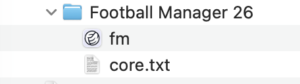
After clicking show package content, you need to go to StandaloneOSX.
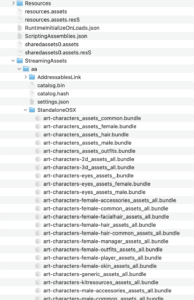
If you click on StandaloneOSX, you will see all user interface related files ( shown above)
Now it is time to copy downloaded skin files and put into StandaloneOSX folder. Accept to replace the existing files with the new ones.
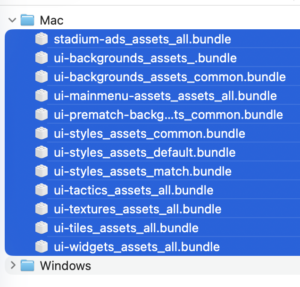
Reload the game and now you have the new skin.
For more details about FM graphics take a look at your Graphics&Skins category
Common Problems & Fixes (Mac Users)
❌ Graphics Not Showing?
Did you extract the file?
Is the folder structure correct?
Is it inside the correct FM26 directory?
❌ Wrong Folder?
Make sure you are NOT placing files inside:
You must use:
Final Checklist
Before panicking, confirm:
Files are extracted
Graphics folder exists
Correct directory path
If everything is correct, your MacBook will run FM26 with full custom visuals.