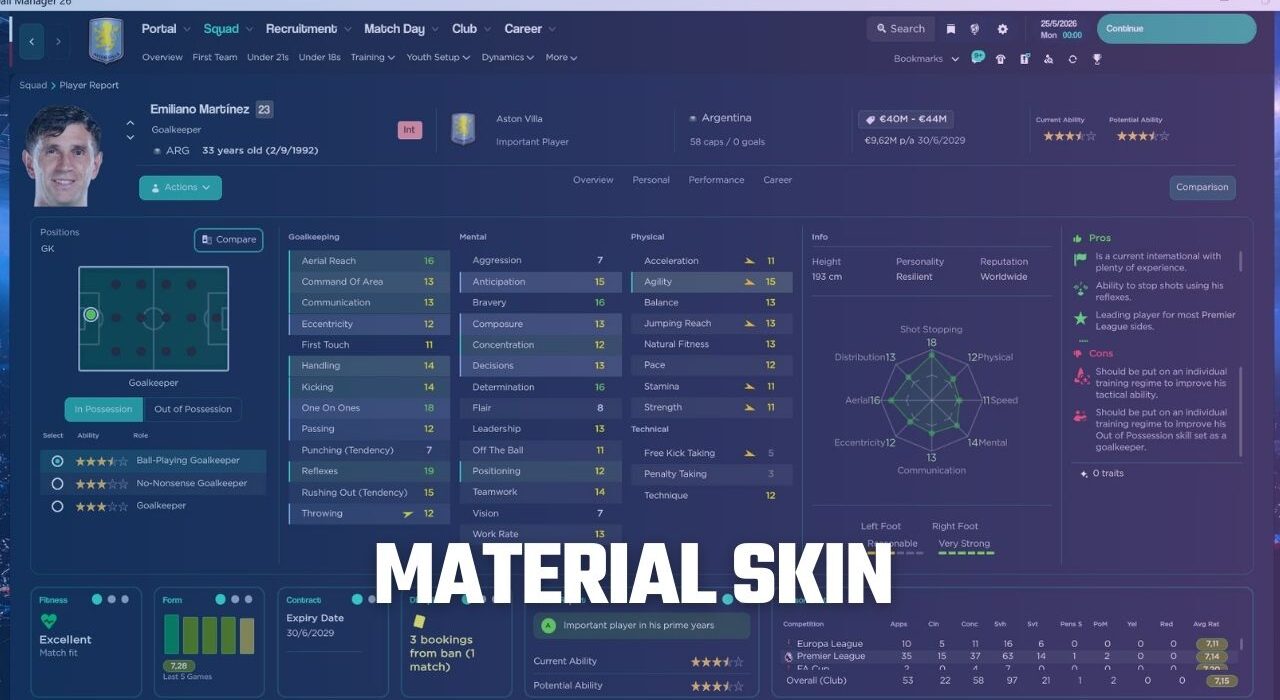
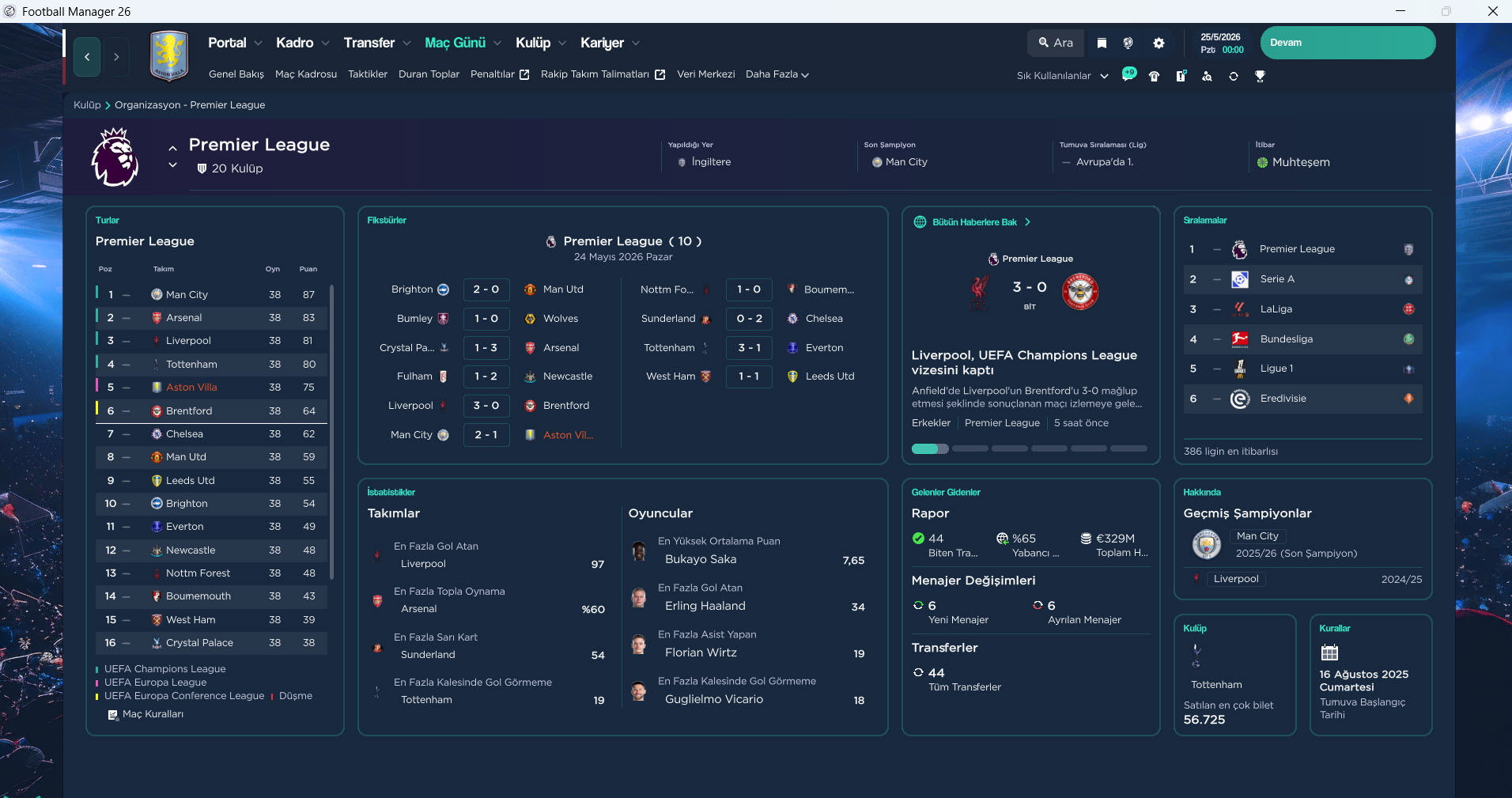
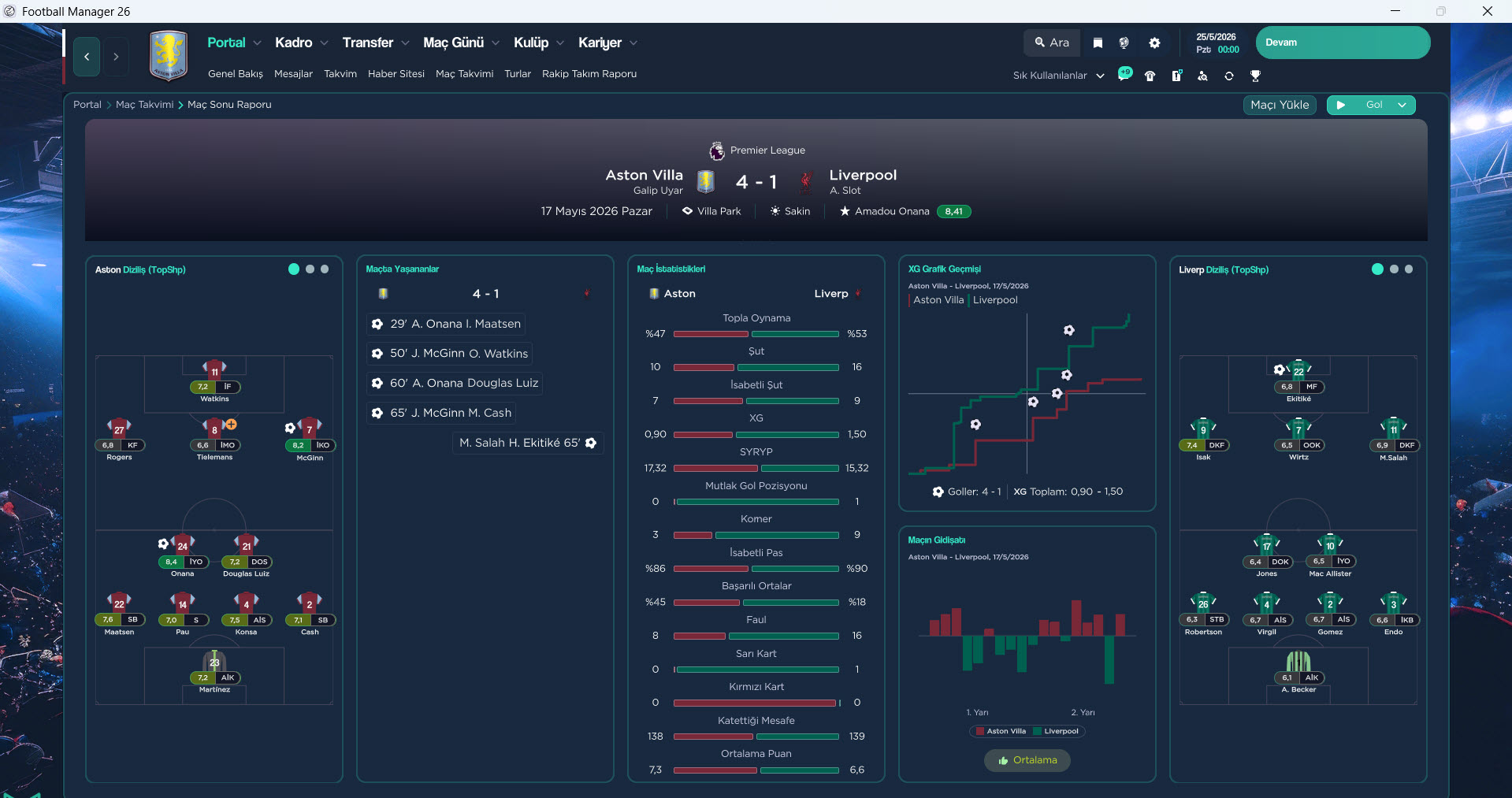
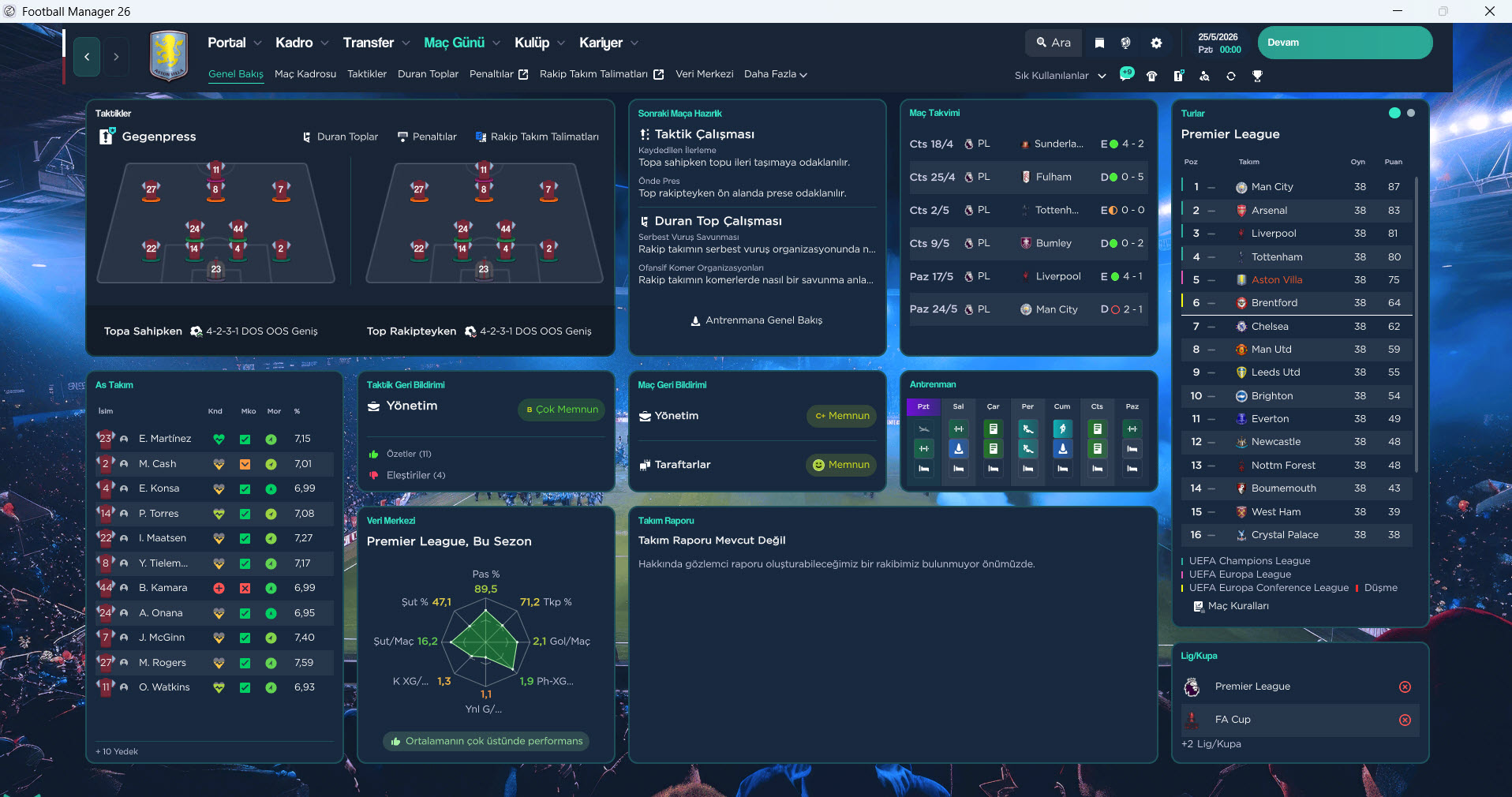
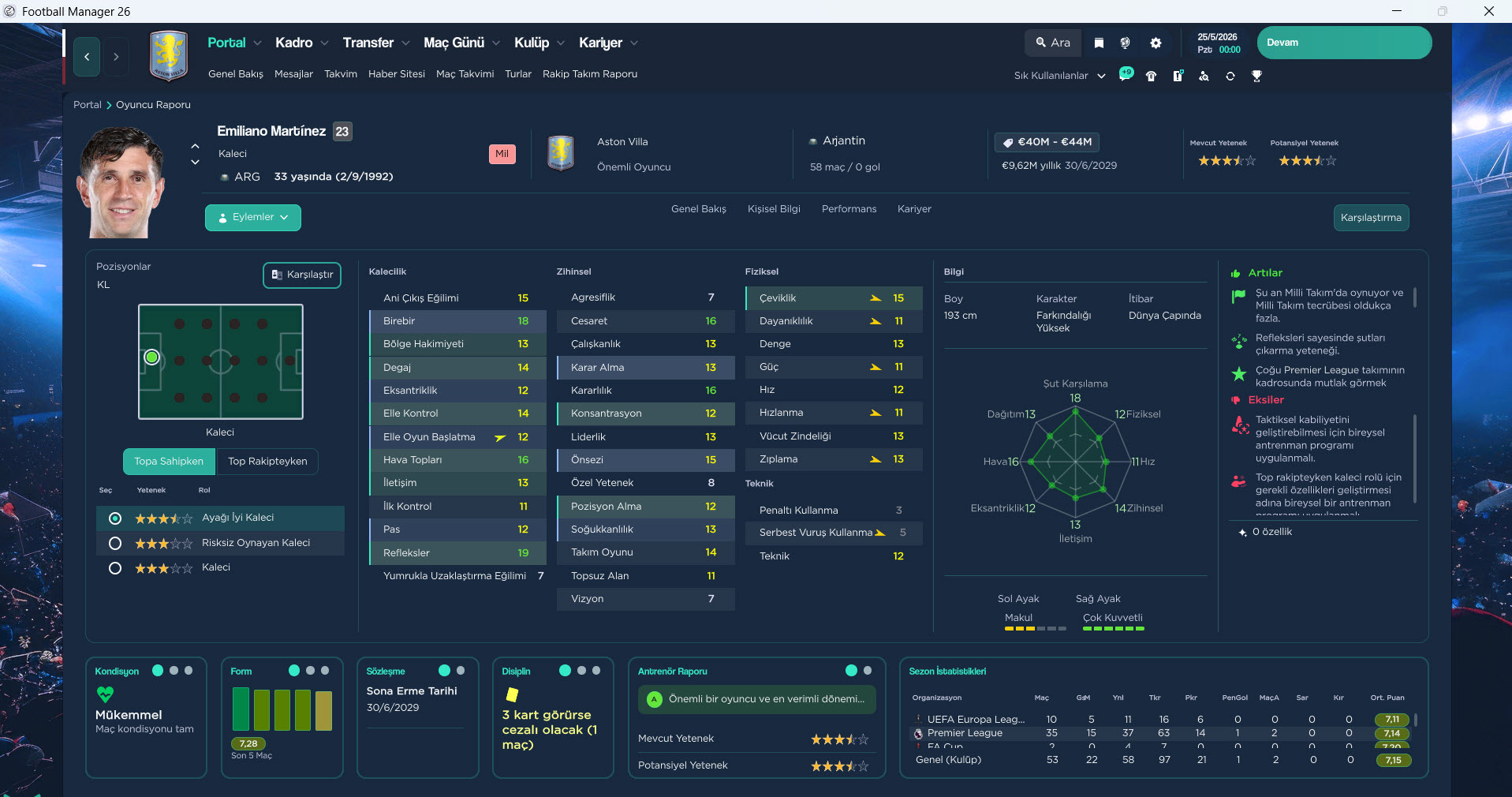
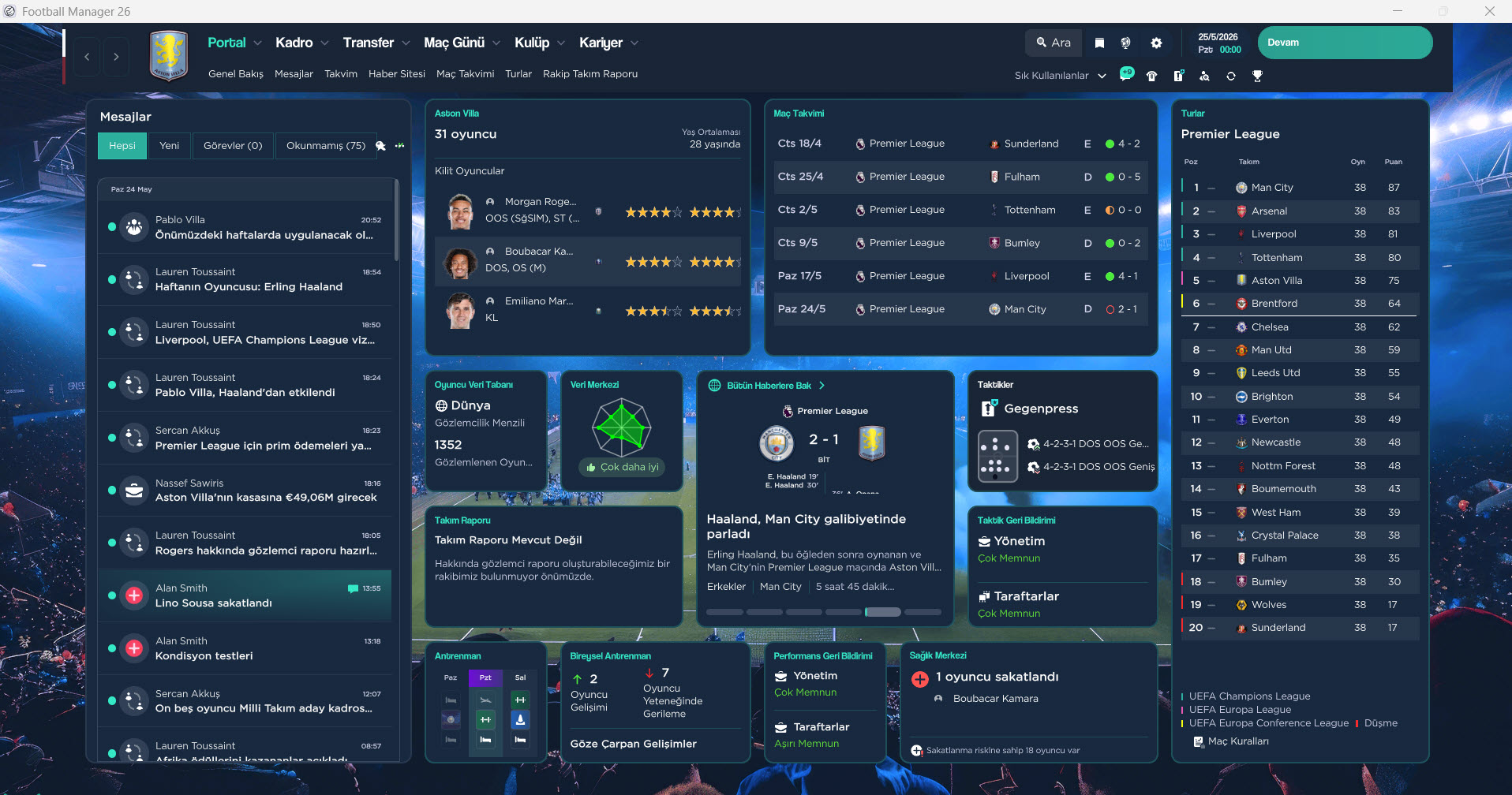
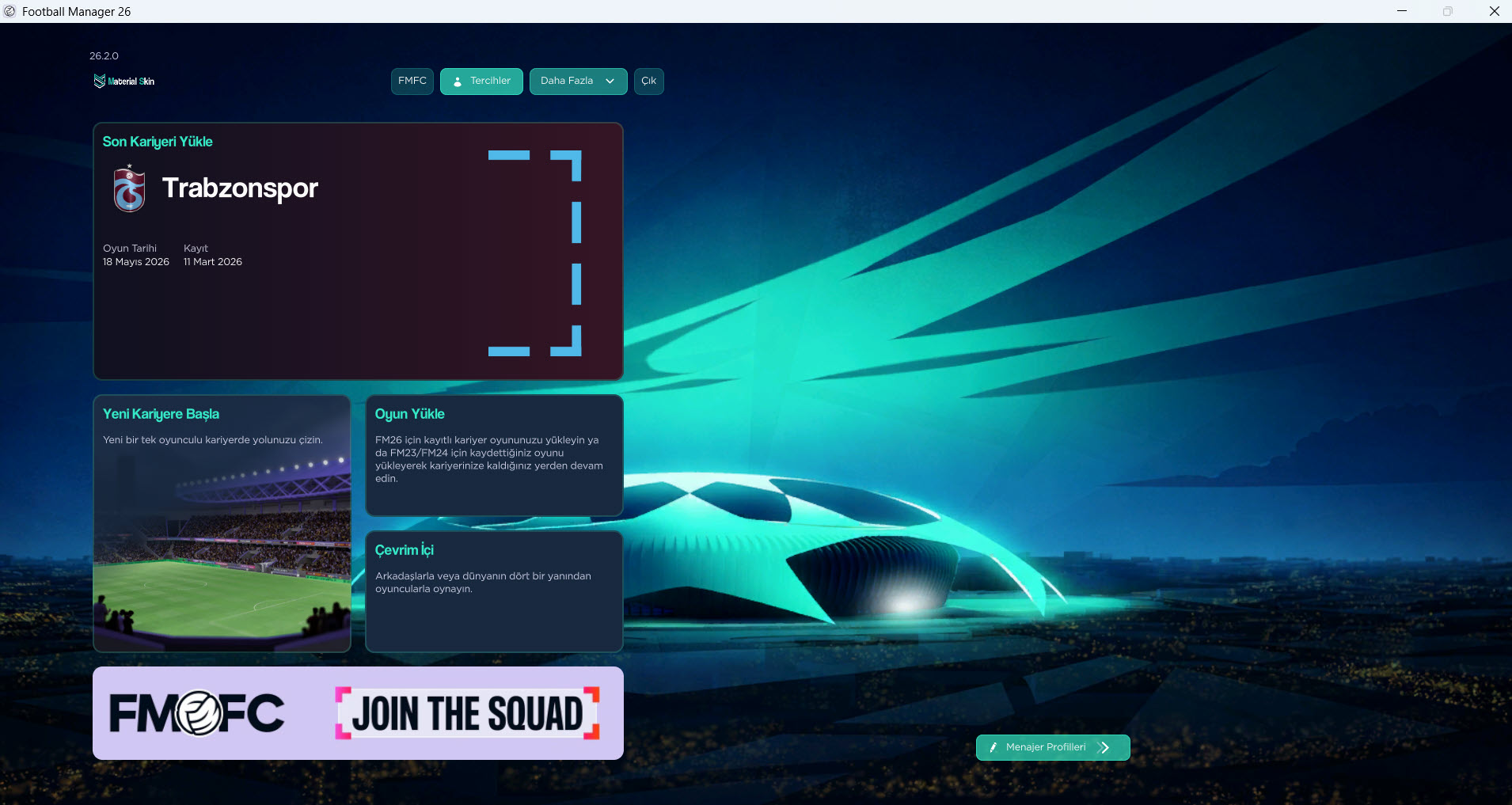
Screenshots


FM26 Skin Installation Steps (Material)
1) First, download the theme.
Click here to download the skin.
Extract the downloaded theme to a folder using a file extraction program such as WinRAR.
When you download the patch, you will see two different folders.
If you are using a computer with the Windows operating system, you should select the Windows folder.
Select the folder corresponding to your operating system and continue with the installation.
2) When you enter the Win or Mac folder, you will see 19 different files.
- ui-backgrounds_assets_.bundle
- ui-backgrounds_assets_common.bundle
- ui-fonts_assets_fmuniverse.bundle
- ui-fonts_assets_production.bundle
- ui-iconspriteatlases_assets_1x.bundle
- ui-iconspriteatlases_assets_2x.bundle
- ui-iconspriteatlases_assets_3x.bundle
- ui-iconspriteatlases_assets_4x.bundle
- ui-mainmenu-assets_assets_all.bundle
- ui-match_assets_all.bundle
- ui-prematch-backgrounds_assets_common.bundle
- ui-styles_assets_common.bundle
- ui-styles_assets_default.bundle
- ui-styles_assets_match.bundle
- ui-tableviews_assets_all.bundle
- ui-tactics_assets_all.bundle
- ui-tiles_assets_all.bundle
- ui-tileslayouts_assets_all.bundle
- ui-widgets_assets_all.bundle
You will have a total of 19 files with the names of the files. Now we will replace these files with the files in the location where the game’s theme file is located.
5) You need to find the file location where the game’s theme is located.
Windows Steam
Drive Where Steam is Installed (such as C, D or E)\Program Files (x86)\Steam\steamapps\common\Football Manager 26\fm_Data\StreamingAssets\aa\StandaloneWindows64
Windows Epic Games
Drive Where Steam is Installed (such as C, D or E)\Program Files\Epic Games\Football Manager 26\fm_Data\StreamingAssets\aa\StandaloneWindows64
Mac Steam ~/Library/Application Support/Steam/steamapps/common/Football Manager 26/fm.app/Contents/Resources/Data/StreamingAssets/aa/StandaloneOSX
Mac Epic Games~/Library/Application Support/Epic/Football Manager 26/fm_Data/StreamingAssets/aa/StandaloneOSXUniversal
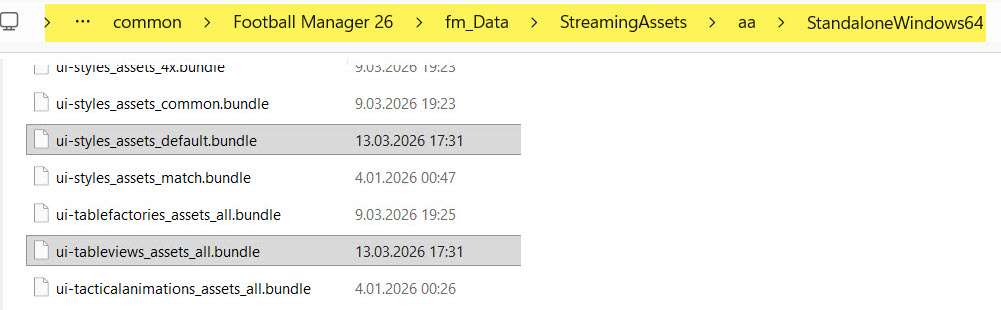
You can also find the game’s theme file by searching for “ui-styles_assets_default” directly on your C, D, and E drives.
The address of the file we need is shown in the screenshot. In my case, it’s installed in the Z folder and is located at Z:\Steam\steamapps\common\Football Manager 26\fm_Data\StreamingAssets\aa\StandaloneWindows64
 6) It’s time to copy the 19 files we downloaded to the location where the game’s theme is installed.
We go to E:\Steam\steamapps\common\Football Manager 26\fm_Data\StreamingAssets\aa\StandaloneWindows64, which is where the theme file is located.
- ui-backgrounds_assets_.bundle
- ui-backgrounds_assets_common.bundle
- ui-fonts_assets_fmuniverse.bundle
- ui-fonts_assets_production.bundle
- ui-iconspriteatlases_assets_1x.bundle
- ui-iconspriteatlases_assets_2x.bundle
- ui-iconspriteatlases_assets_3x.bundle
- ui-iconspriteatlases_assets_4x.bundle
- ui-mainmenu-assets_assets_all.bundle
- ui-match_assets_all.bundle
- ui-prematch-backgrounds_assets_common.bundle
- ui-styles_assets_common.bundle
- ui-styles_assets_default.bundle
- ui-styles_assets_match.bundle
- ui-tableviews_assets_all.bundle
- ui-tactics_assets_all.bundle
- ui-tiles_assets_all.bundle
- ui-tileslayouts_assets_all.bundle
- ui-widgets_assets_all.bundle
We copy the files here. If you are not satisfied with the theme, you can revert to the original game files (original theme) by verifying the integrity of the files. To revert to the original Football Manager 26 files, you can verify the Steam files.
7) Now log into Football Manager 26 and you will see that your theme has changed.