
We continue sharing skins for Football Manager 26 without slowing down. For players who couldn’t get used to the default FM26 interface, community skins have become a real lifesaver.
Next in our FM26 skin series is CTRL26, one of the most popular skins in the community recently. Here are the details and installation steps for the FM26 CTRL26 Skin.
As many Football Manager players already know, interface skins are among the most popular mods in the Football Manager community. They allow players to completely change the look of the game’s interface and improve usability.
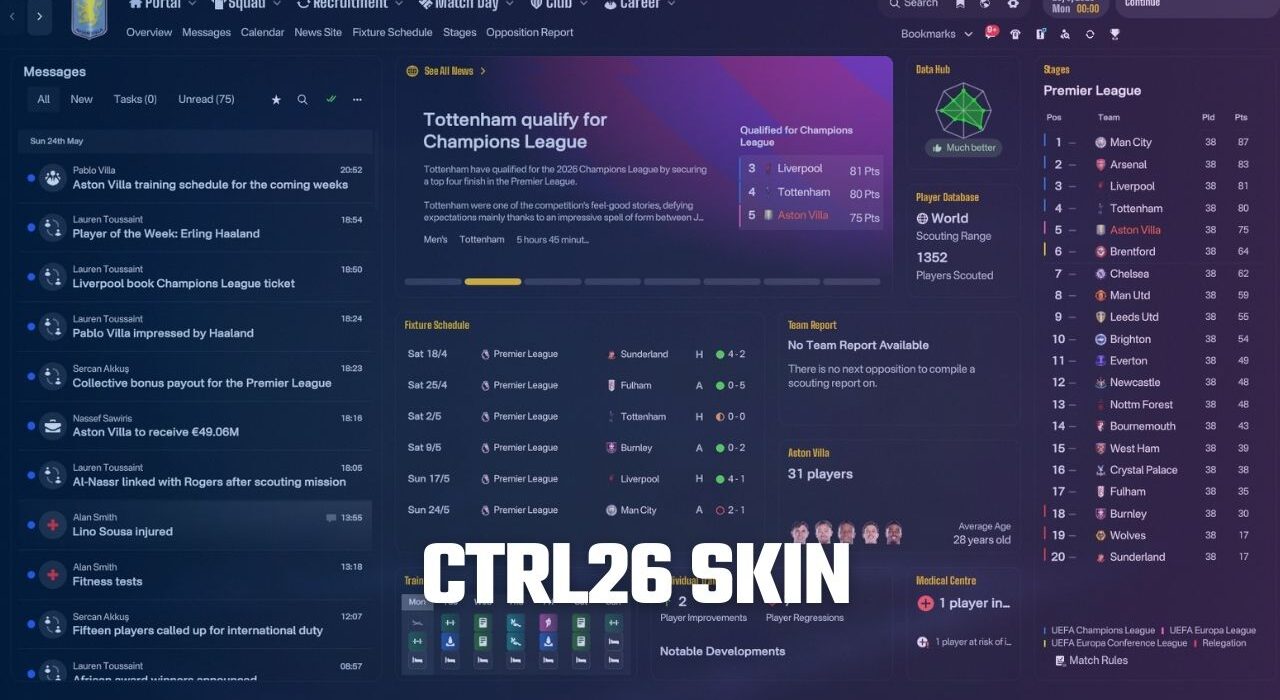
The CTRL26 Skin stands out with its clean design, improved panels, and better information layout, making it easier to navigate the game’s menus and player pages.
Before moving on to the installation steps — which are slightly different from the standard skin installation process in the Football Manager series — let’s first take a look at the screenshots and key features of the CTRL26 Skin.
CTRL26 Skin v1.2 (13 March 2026)
After the winter transfer update released on March 9 for Football Manager 26, many community skins quickly received compatibility updates. One of the first skins to be updated was the CTRL26 Skin.
With the latest update published on March 13, 2026, the CTRL26 Skin has been updated to version 1.2.
According to the skin creator, the theme has currently been tested only in English language settings and on Full HD resolution screens (1920×1080) or higher. Because of this limitation, players using lower screen resolutions than Full HD may encounter visual issues or layout problems while using the skin.
If you are playing FM26 with a Full HD or higher resolution, the CTRL26 Skin should work smoothly and provide a cleaner alternative interface to the default game layout.
Screenshots
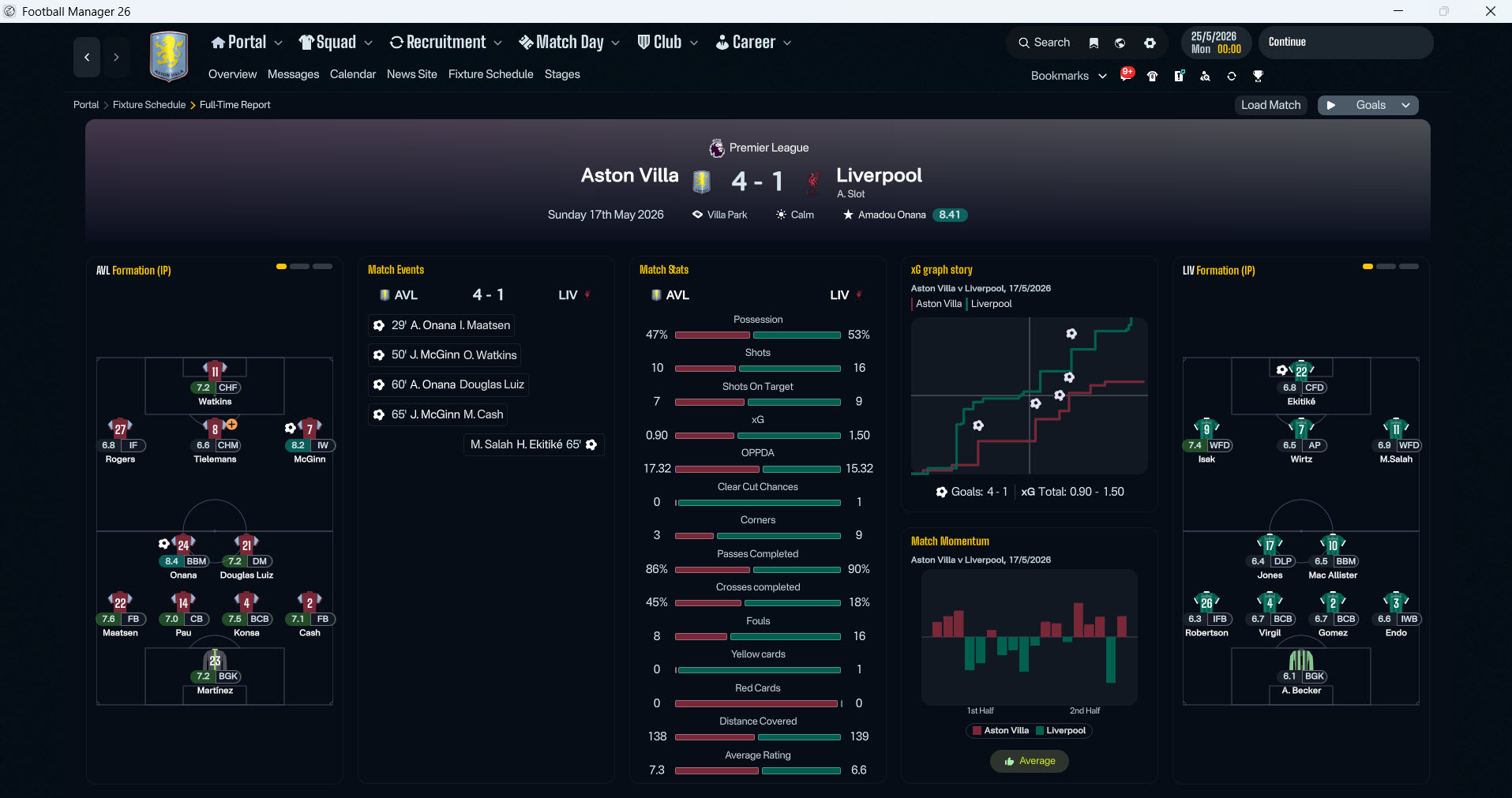
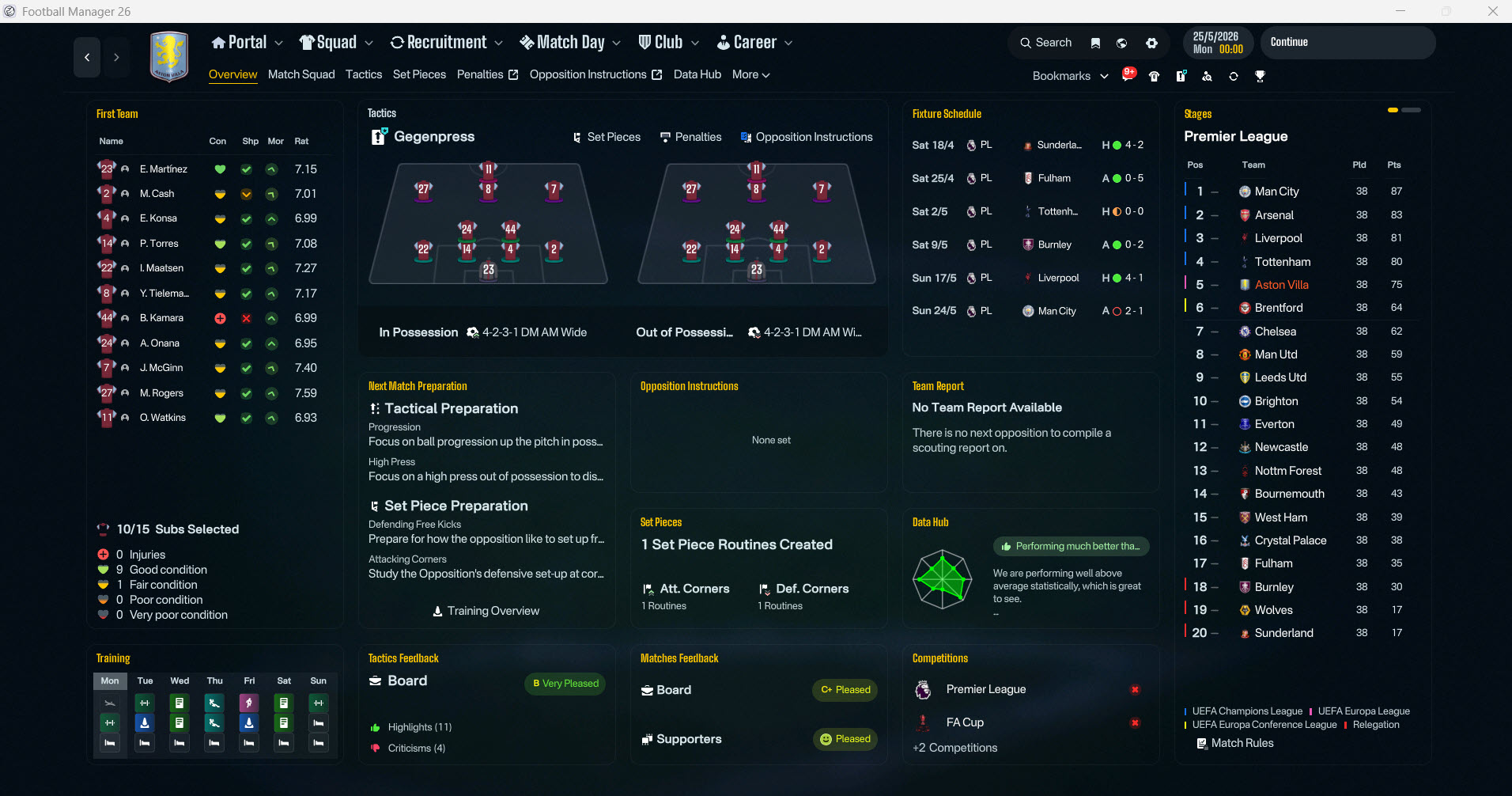
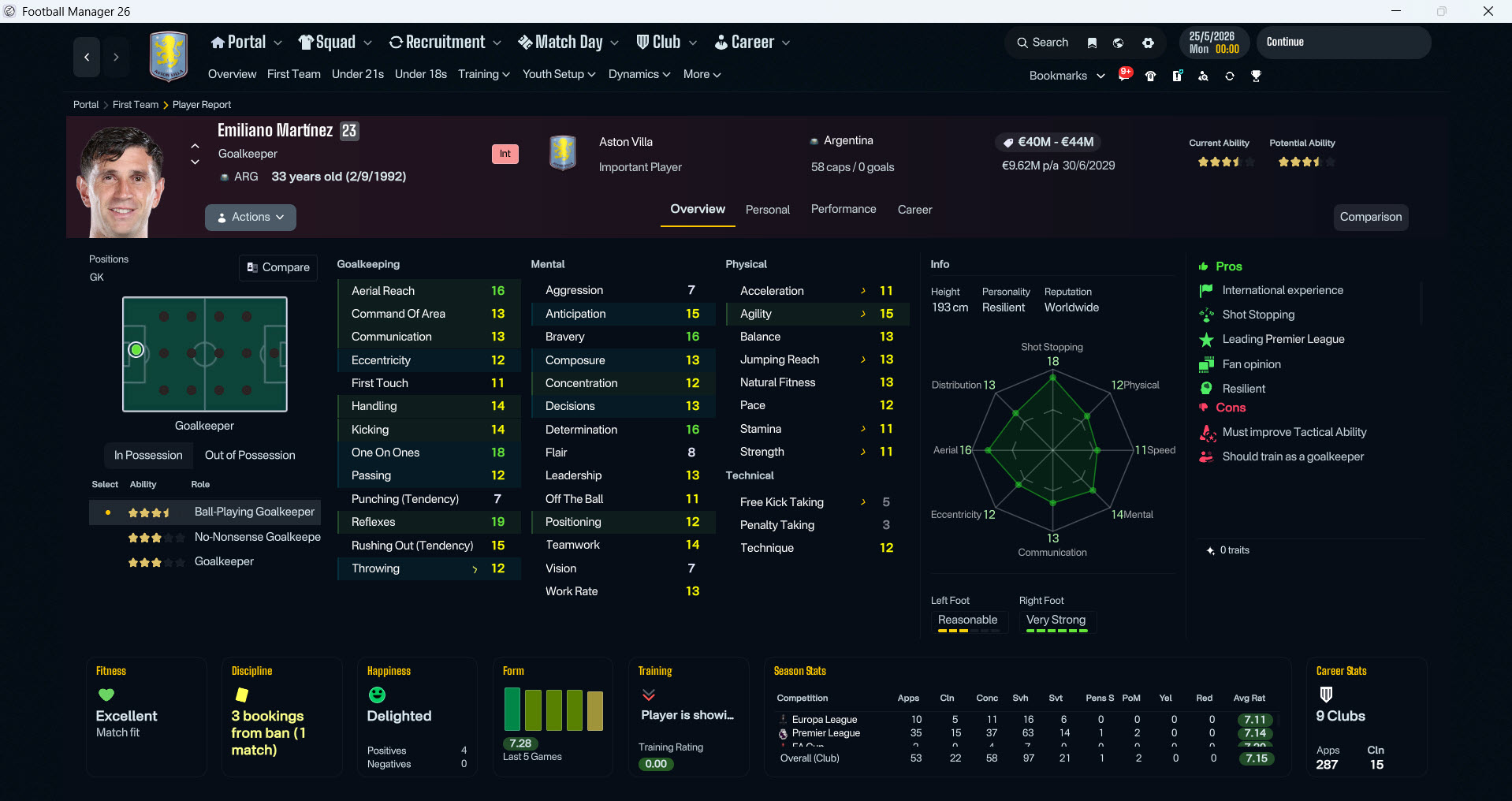
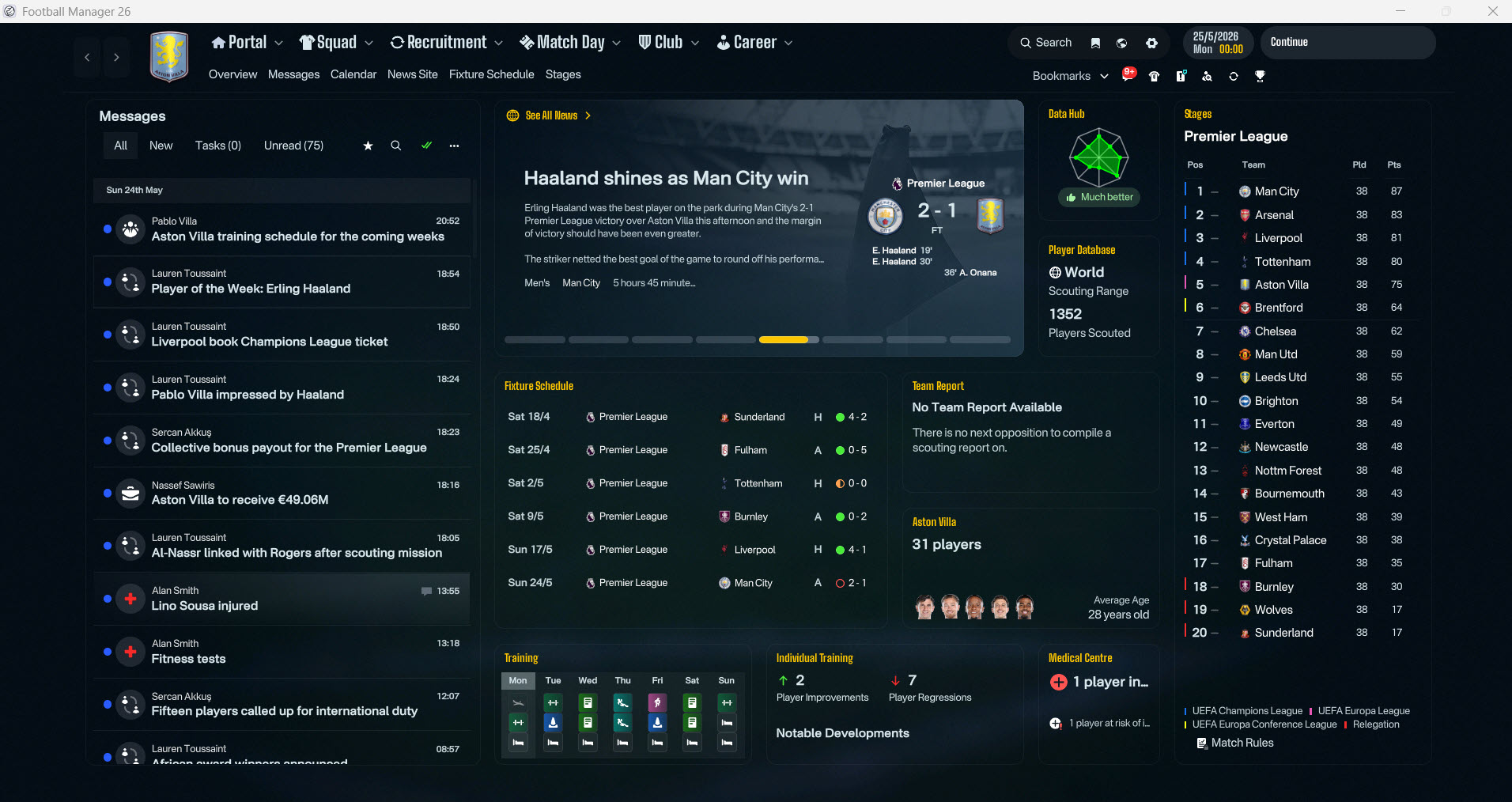
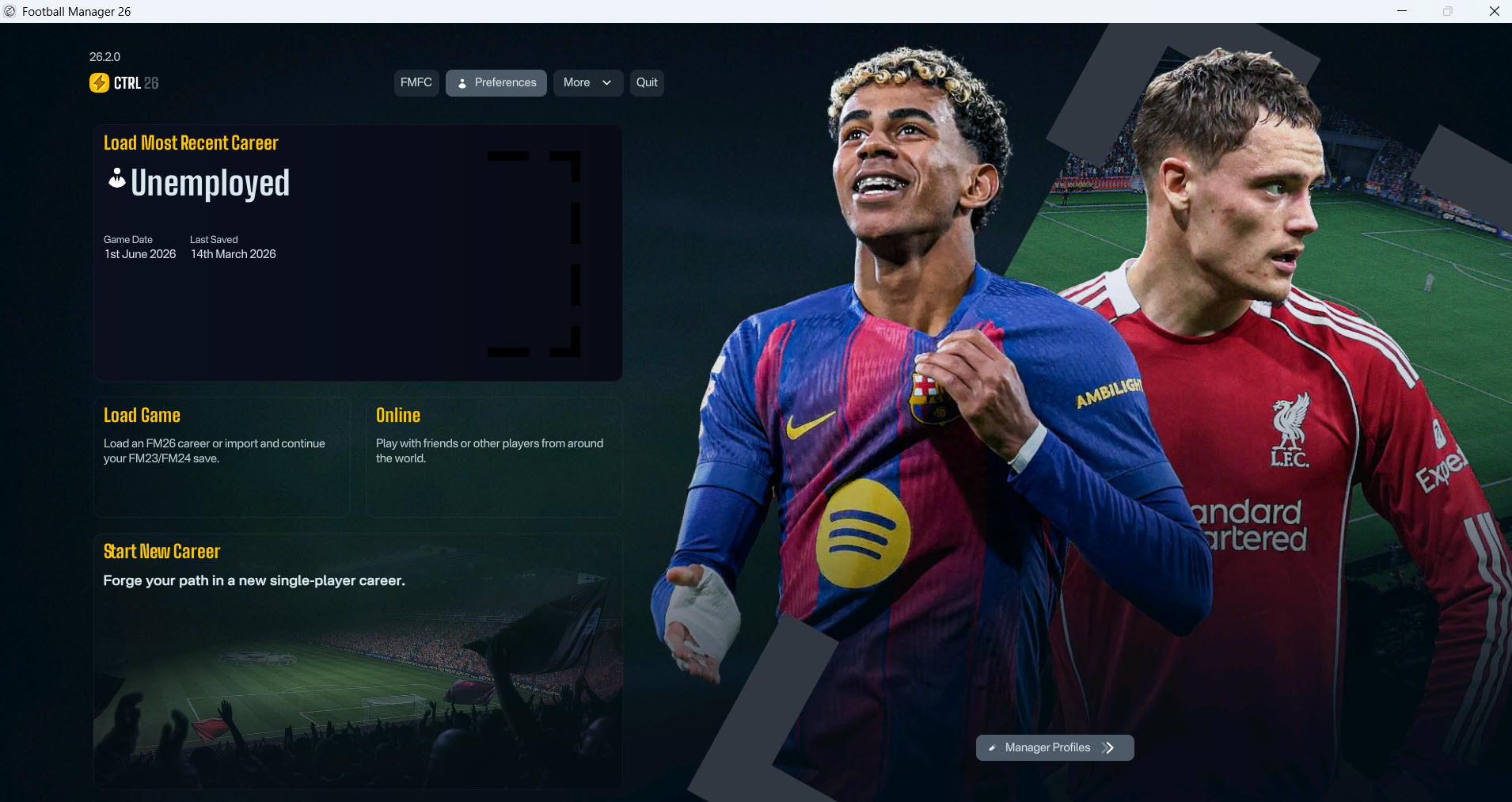
FM26 Skin Installation Steps (CTRL26)
1) First, download the theme.
Click here to download the skin.
Extract the downloaded theme to a folder using a file opening application such as WinRAR.
When you download the patch, you will see 2 different folders.
- Mac
- Win
If you are using a computer with a Windows operating system, you should select the Win folder.
Select the folder corresponding to your operating system and continue with the installation.
2) When you enter the Win or Mac folder, you will see 17 different files.
- ui-backgrounds_assets_.bundle
- ui-backgrounds_assets_common.bundle
- ui-fonts_assets_fmuniverse.bundle
- ui-fonts_assets_production.bundle
- ui-iconspriteatlases_assets_1x.bundle
- ui-iconspriteatlases_assets_2x.bundle
- ui-iconspriteatlases_assets_3x.bundle
- ui-iconspriteatlases_assets_4x.bundle
- ui-mainmenu-assets_assets_all.bundle
- ui-match_assets_all.bundle
- ui-panelids-uxml_assets_all.bundle
- ui-styles_assets_default.bundle
- ui-tactics_assets_all.bundle
- ui-textures_assets_all.bundle
- ui-tiles_assets_all.bundle
- ui-tileslayouts_assets_all.bundle
- ui-widgets_assets_all.bundle
You will have a total of 17 files with the names of the files. Now we will replace these files with the files in the location where the game’s theme file is located.
5) You need to find the file location where the game’s theme is located.
Windows Steam
Drive Where Steam is Installed (such as C, D or E)\Program Files (x86)\Steam\steamapps\common\Football Manager 26\fm_Data\StreamingAssets\aa\StandaloneWindows64
Windows Epic Games
Drive Where Steam is Installed (such as C, D or E)\Program Files\Epic Games\Football Manager 26\fm_Data\StreamingAssets\aa\StandaloneWindows64
Mac Steam ~/Library/Application Support/Steam/steamapps/common/Football Manager 26/fm.app/Contents/Resources/Data/StreamingAssets/aa/StandaloneOSX
Mac Epic Games~/Library/Application Support/Epic/Football Manager 26/fm_Data/StreamingAssets/aa/StandaloneOSXUniversal
You can also find the game’s theme file by searching for “ui-styles_assets_default” directly on your C, D, and E drives.
The address of the file we need is shown in the screenshot. In my case, it’s installed in the Z folder and is located at Z:\Steam\steamapps\common\Football Manager 26\fm_Data\StreamingAssets\aa\StandaloneWindows64
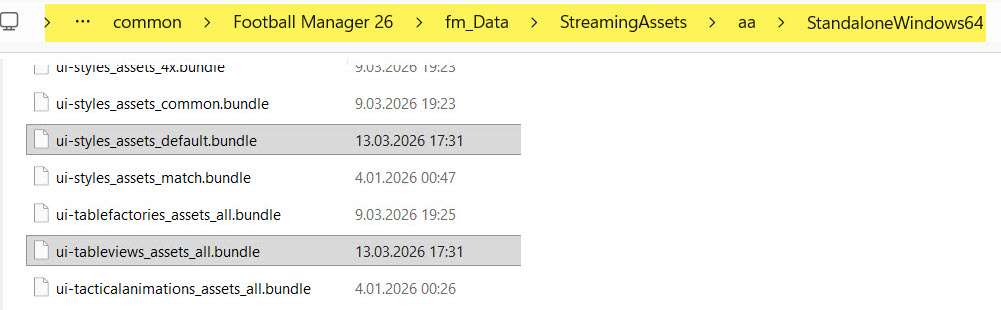
6) It’s time to copy the 17 files we downloaded to the location where the game’s theme is installed.
We go to E:\Steam\steamapps\common\Football Manager 26\fm_Data\StreamingAssets\aa\StandaloneWindows64, which is where the theme file is located.
- ui-backgrounds_assets_.bundle
- ui-backgrounds_assets_common.bundle
- ui-fonts_assets_fmuniverse.bundle
- ui-fonts_assets_production.bundle
- ui-iconspriteatlases_assets_1x.bundle
- ui-iconspriteatlases_assets_2x.bundle
- ui-iconspriteatlases_assets_3x.bundle
- ui-iconspriteatlases_assets_4x.bundle
- ui-mainmenu-assets_assets_all.bundle
- ui-match_assets_all.bundle
- ui-panelids-uxml_assets_all.bundle
- ui-styles_assets_default.bundle
- ui-tactics_assets_all.bundle
- ui-textures_assets_all.bundle
- ui-tiles_assets_all.bundle
- ui-tileslayouts_assets_all.bundle
- ui-widgets_assets_all.bundle
We copy the files here. If you are not satisfied with the theme, you can revert to the original game files (original theme) by verifying the integrity of the files. To revert to the original Football Manager 26 files, you can verify the Steam files.
7) Now log into Football Manager 26 and you will see that your theme has changed.