
In our FM26 skin series, we continue with the Dark Skin, a theme that has been released for almost every version of the Football Manager 26 series over the years.
For players who want to move away from FM26’s default colors and background, the FM26 Dark Skin offers a much darker and more atmospheric interface. Here are the details and installation steps of the FM26 Dark Skin.
nterface skins are one of the most popular mods in the Football Manager community. They allow players to customize the game’s appearance and create a more comfortable visual experience during long career saves.
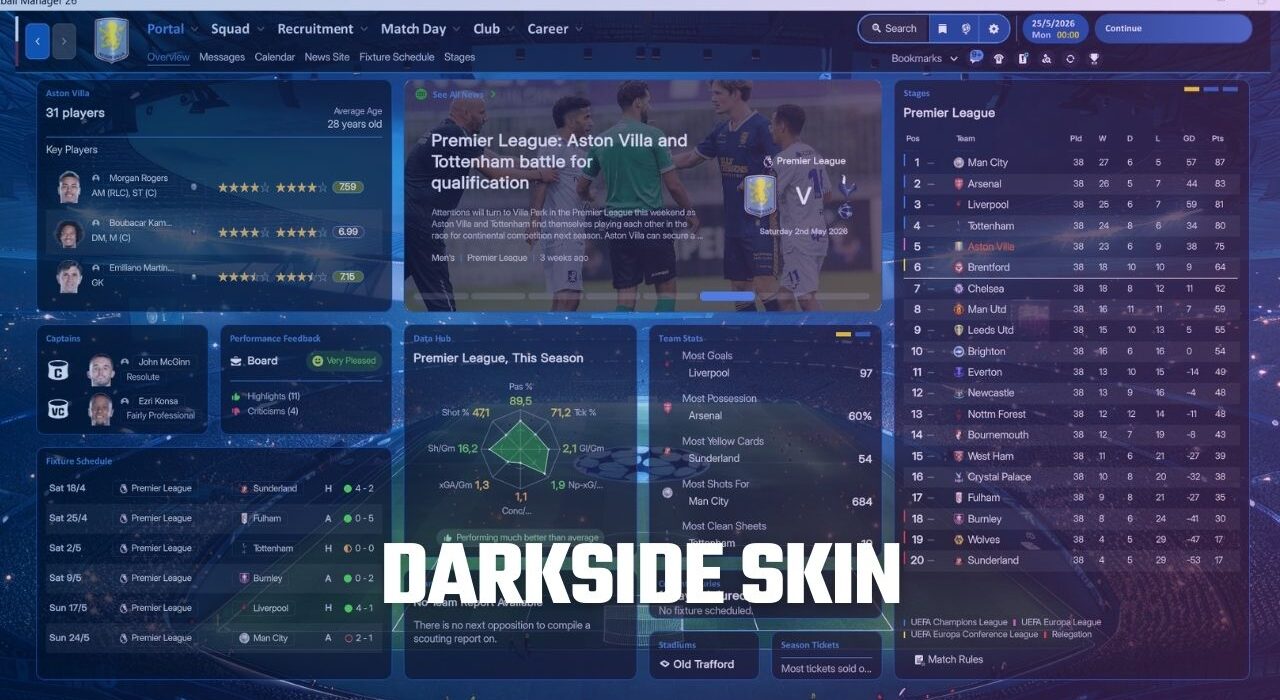
Before moving on to the installation steps — which differ slightly from the standard skin installation process used in previous Football Manager titles — let’s first look at the screenshots and features of the Dark Skin.
FM26 Dark Skin Version 4.6 (20 March 2026)
After the winter transfer update released on March 9, the Dark Skin became one of the first skins to receive a compatibility update for the latest version of the game.
With this update, the skin was upgraded to version 4.6
The theme features dominant dark color tones, while the background includes a UEFA Champions League–style visual, creating a stylish atmosphere that many Football Manager players will appreciate.
Screenshots
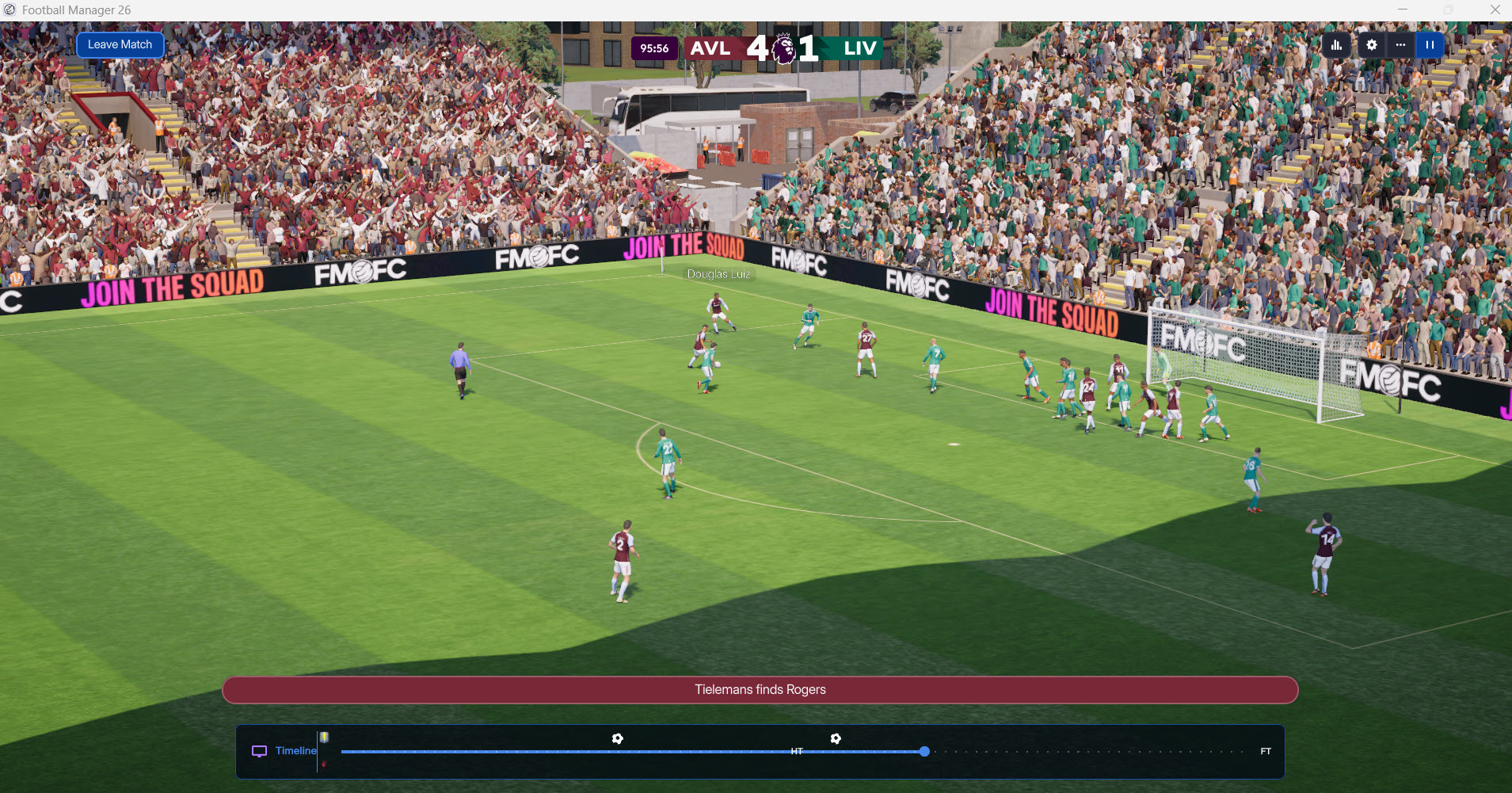
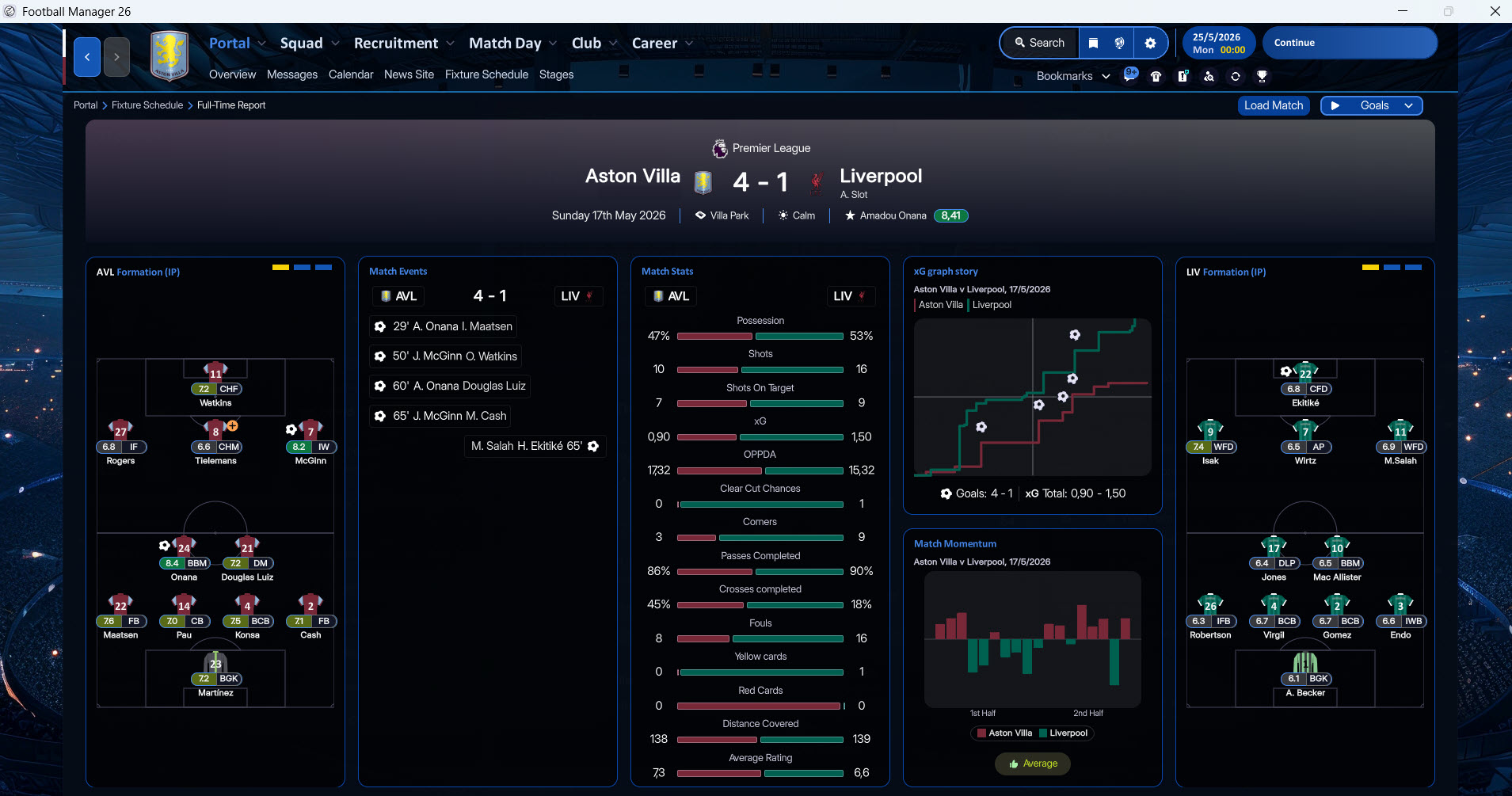
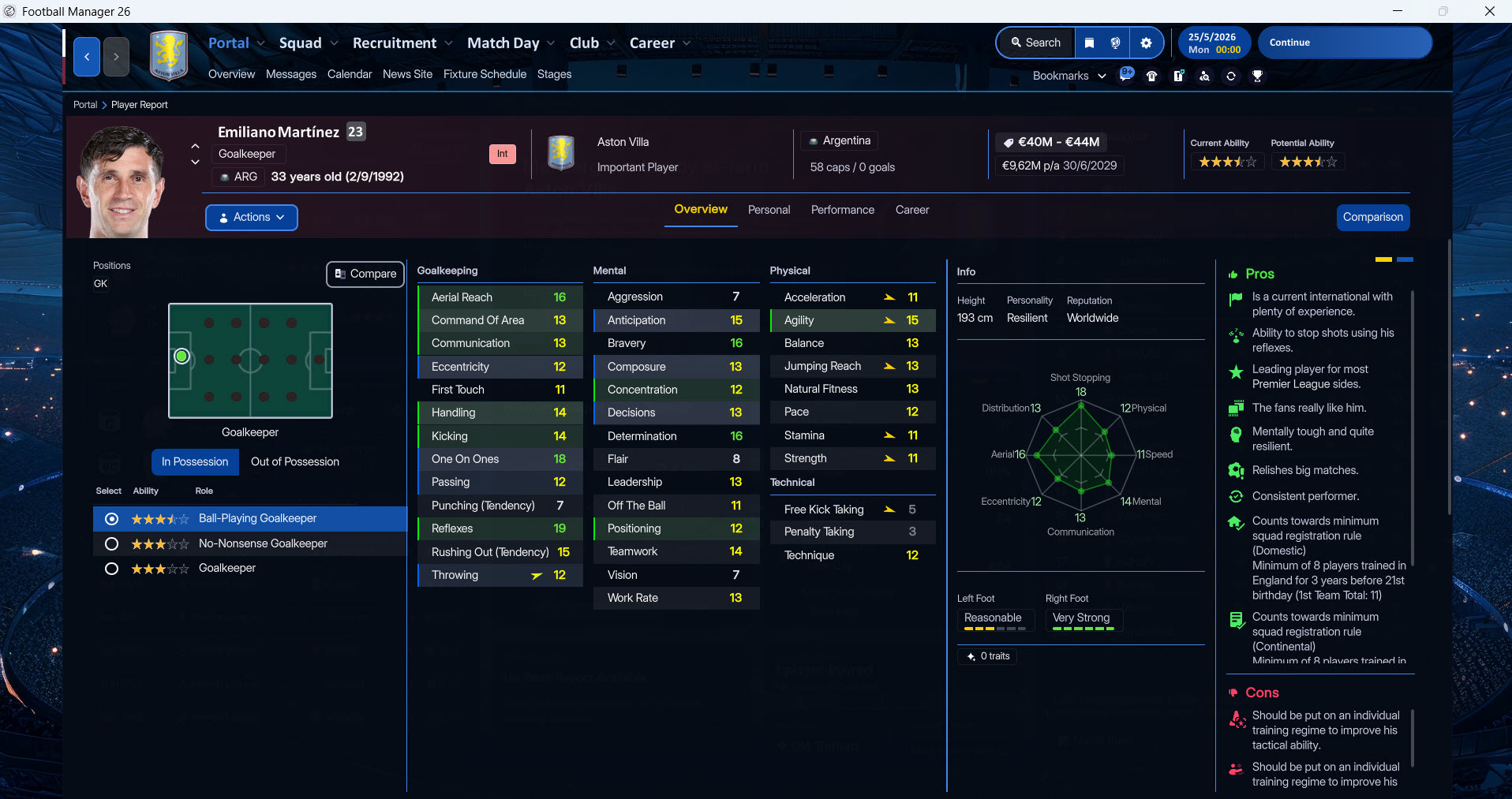
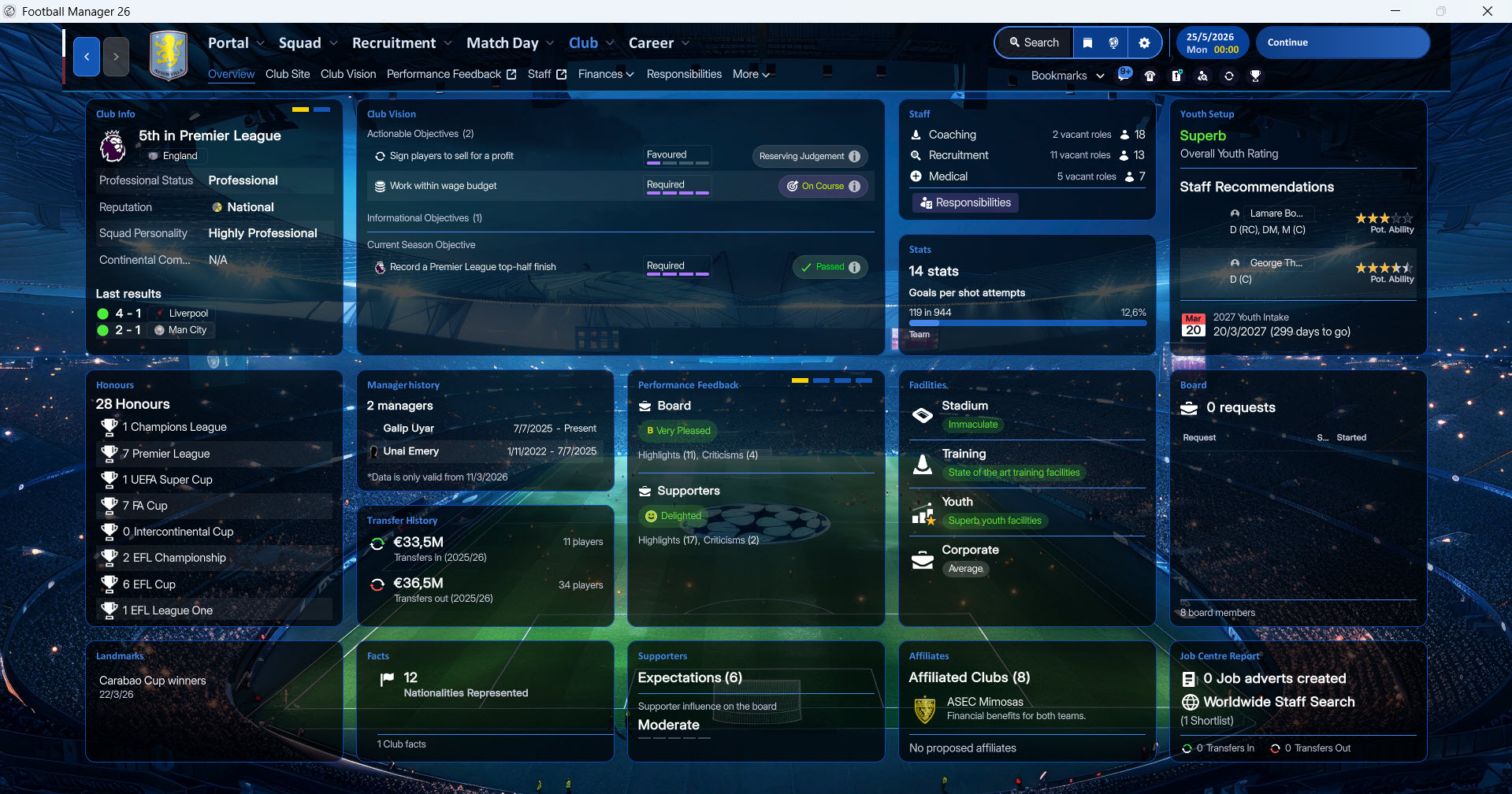
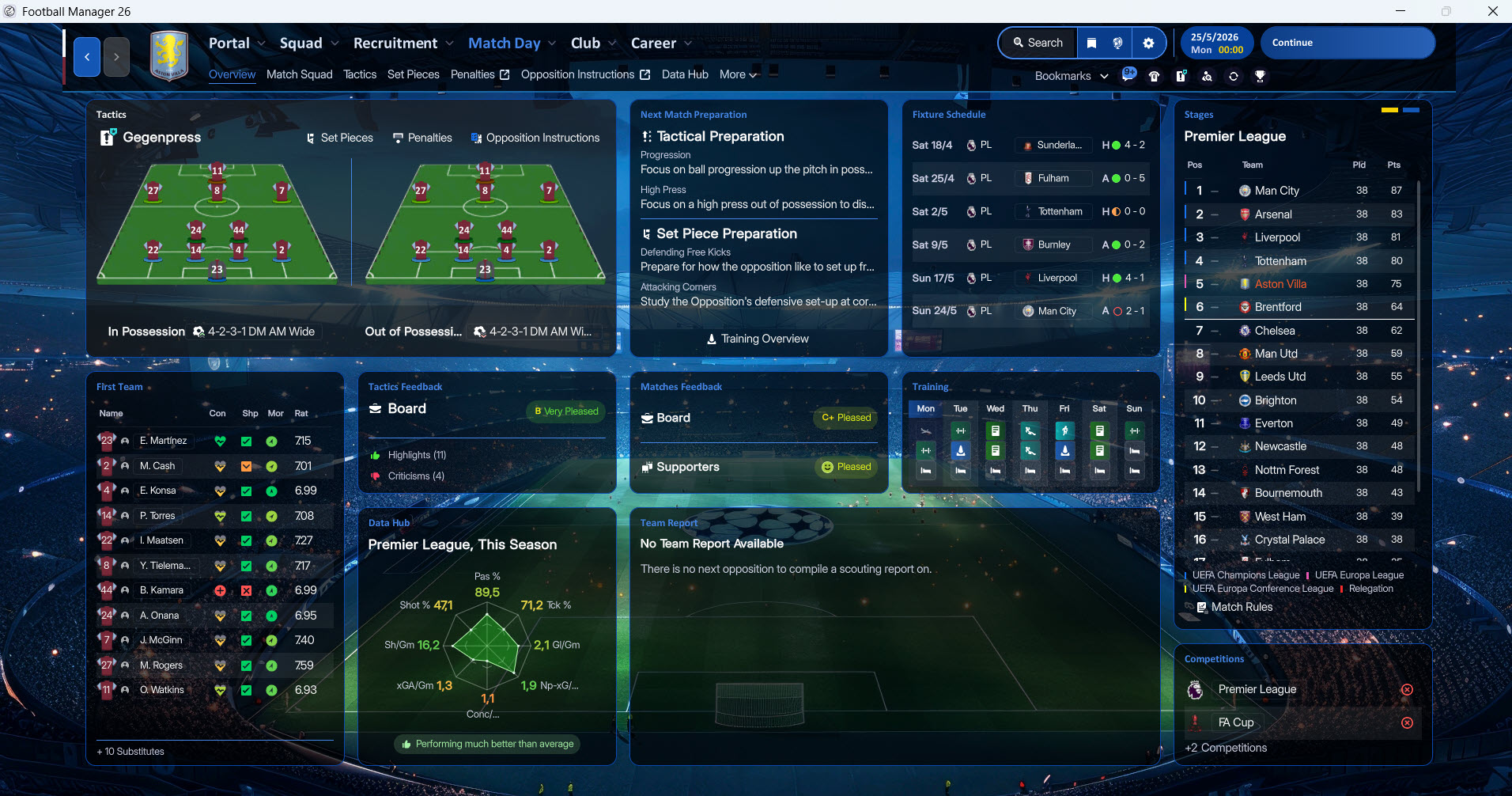
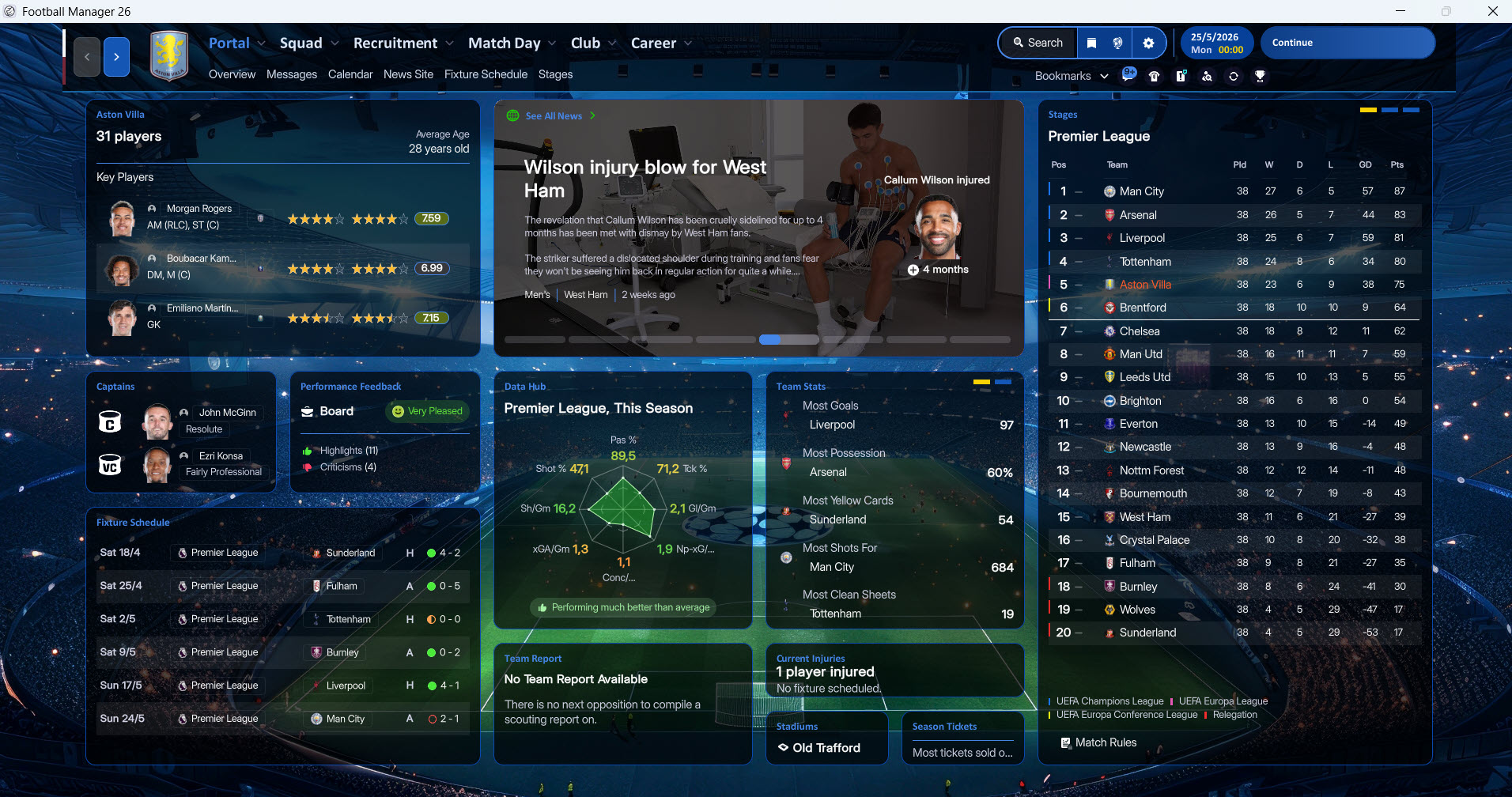
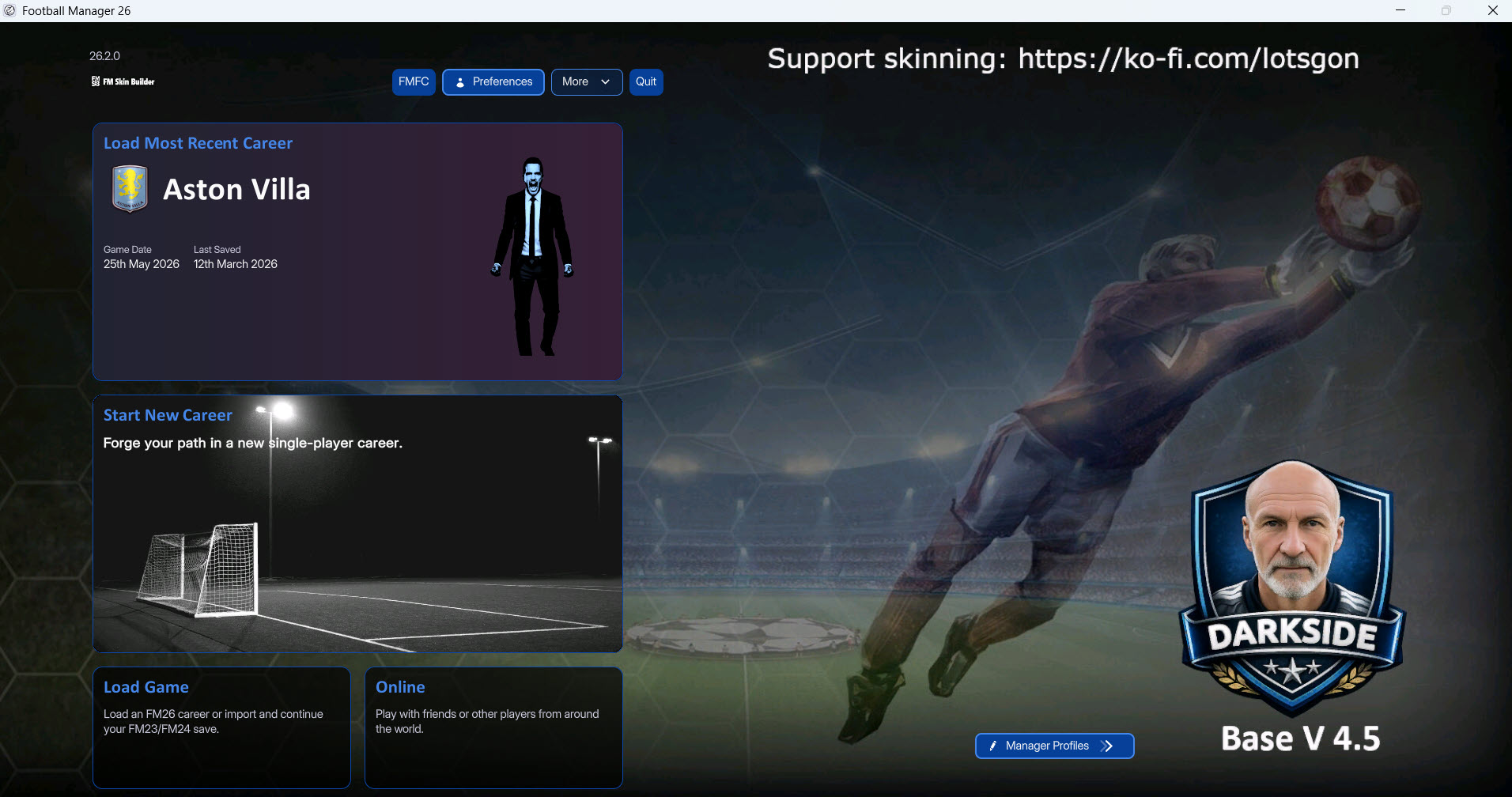
FM26 Skin Installation Steps (Dark Skin)
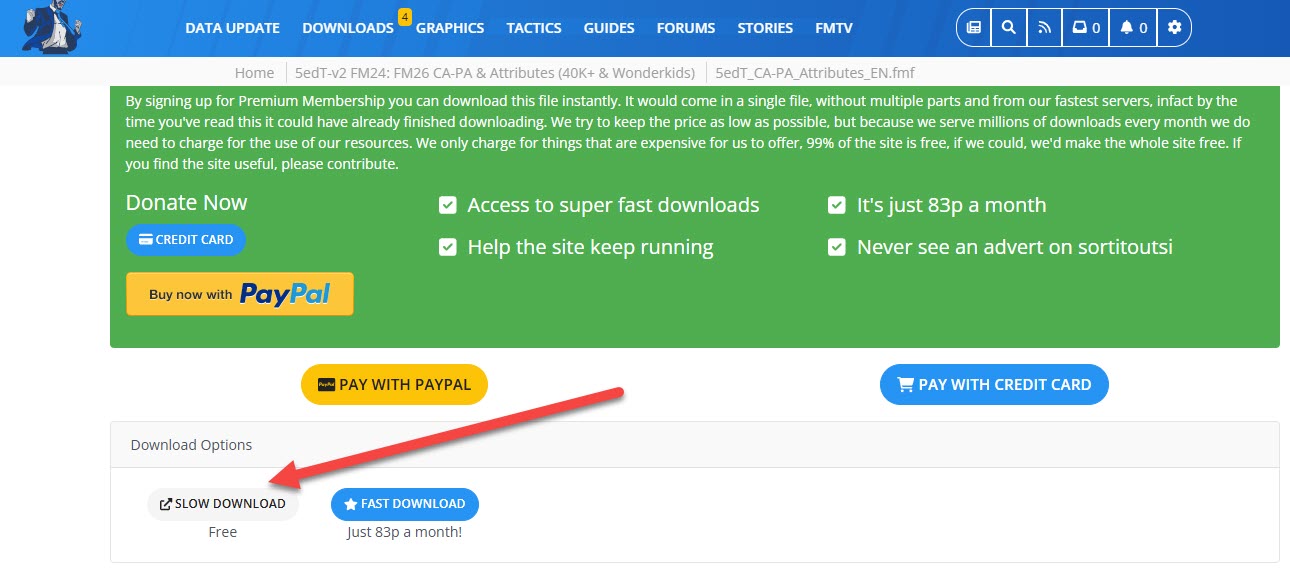
The patch is 100% free. When accessing the download page, make sure to click on the sections labeled “Free Download” or “Slow Download.” These are the correct options to download the files at no cost.
A sample screenshot of the correct download button is shown below for reference.
1) Before downloading the patch, you need to select the appropriate operating system. If you have a Windows device, download the “Darkside – Base V 4.5 Windows bundles.zip” file; if you have a MacOS device, download the “Darkside – Base V 4.5 MacOS bundles.zip” file.
Click here to download the skin.
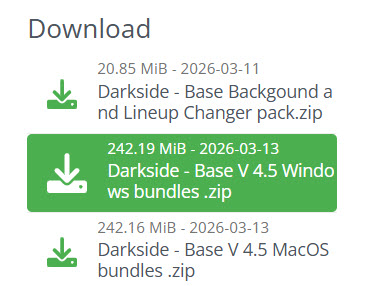
Select the folder corresponding to your operating system and continue with the installation.
2) When you enter the Win or Mac folder, you will see 20 different files.
- stadium-ads_assets_all.bundle
- ui-backgrounds_assets_.bundle
- ui-backgrounds_assets_common.bundle
- ui-fonts_assets_fmuniverse.bundle
- ui-fonts_assets_production.bundle
- ui-iconspriteatlases_assets_1x.bundle
- ui-iconspriteatlases_assets_2x.bundle
- ui-iconspriteatlases_assets_3x.bundle
- ui-iconspriteatlases_assets_4x.bundle
- ui-mainmenu-assets_assets_all.bundle
- ui-match_assets_all.bundle
- ui-prematch-backgrounds_assets_common.bundle
- ui-styles_assets_default.bundle
- ui-styles_assets_match.bundle
- ui-tableviews_assets_all.bundle
- ui-tactics_assets_all.bundle
- ui-textures_assets_all.bundle
- ui-tiles_assets_all.bundle
- ui-tileslayouts_assets_all.bundle
- ui-widgets_assets_all.bundle
You will have a total of 20 files with the names of the files. Now we will replace these files with the files in the location where the game’s theme file is located.
5) You need to find the file location where the game’s theme is located.
Windows Steam
Drive Where Steam is Installed (such as C, D or E)\Program Files (x86)\Steam\steamapps\common\Football Manager 26\fm_Data\StreamingAssets\aa\StandaloneWindows64
Windows Epic Games
Drive Where Steam is Installed (such as C, D or E)\Program Files\Epic Games\Football Manager 26\fm_Data\StreamingAssets\aa\StandaloneWindows64
Mac Steam ~/Library/Application Support/Steam/steamapps/common/Football Manager 26/fm.app/Contents/Resources/Data/StreamingAssets/aa/StandaloneOSX
Mac Epic Games~/Library/Application Support/Epic/Football Manager 26/fm_Data/StreamingAssets/aa/StandaloneOSXUniversal
You can also find the game’s theme file by searching for “ui-styles_assets_default” directly on your C, D, and E drives.
The address of the file we need is shown in the screenshot. In my case, it’s installed in the Z folder and is located at Z:\Steam\steamapps\common\Football Manager 26\fm_Data\StreamingAssets\aa\StandaloneWindows64
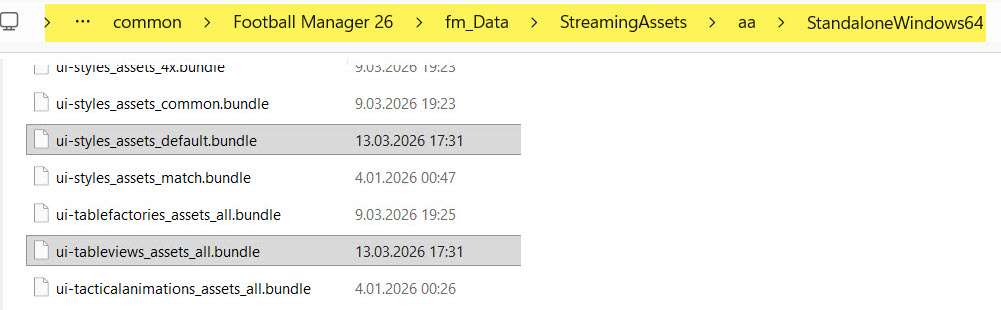
6) It’s time to copy the 20 files we downloaded to the location where the game’s theme is installed.
We go to E:\Steam\steamapps\common\Football Manager 26\fm_Data\StreamingAssets\aa\StandaloneWindows64, which is where the theme file is located.
- stadium-ads_assets_all.bundle
- ui-backgrounds_assets_.bundle
- ui-backgrounds_assets_common.bundle
- ui-fonts_assets_fmuniverse.bundle
- ui-fonts_assets_production.bundle
- ui-iconspriteatlases_assets_1x.bundle
- ui-iconspriteatlases_assets_2x.bundle
- ui-iconspriteatlases_assets_3x.bundle
- ui-iconspriteatlases_assets_4x.bundle
- ui-mainmenu-assets_assets_all.bundle
- ui-match_assets_all.bundle
- ui-prematch-backgrounds_assets_common.bundle
- ui-styles_assets_default.bundle
- ui-styles_assets_match.bundle
- ui-tableviews_assets_all.bundle
- ui-tactics_assets_all.bundle
- ui-textures_assets_all.bundle
- ui-tiles_assets_all.bundle
- ui-tileslayouts_assets_all.bundle
- ui-widgets_assets_all.bundle
We copy the files here. If you are not satisfied with the theme, you can revert to the original game files (original theme) by verifying the integrity of the files. To revert to the original Football Manager 26 files, you can verify the Steam files.
7) Now log into Football Manager 26 and you will see that your theme has changed.