
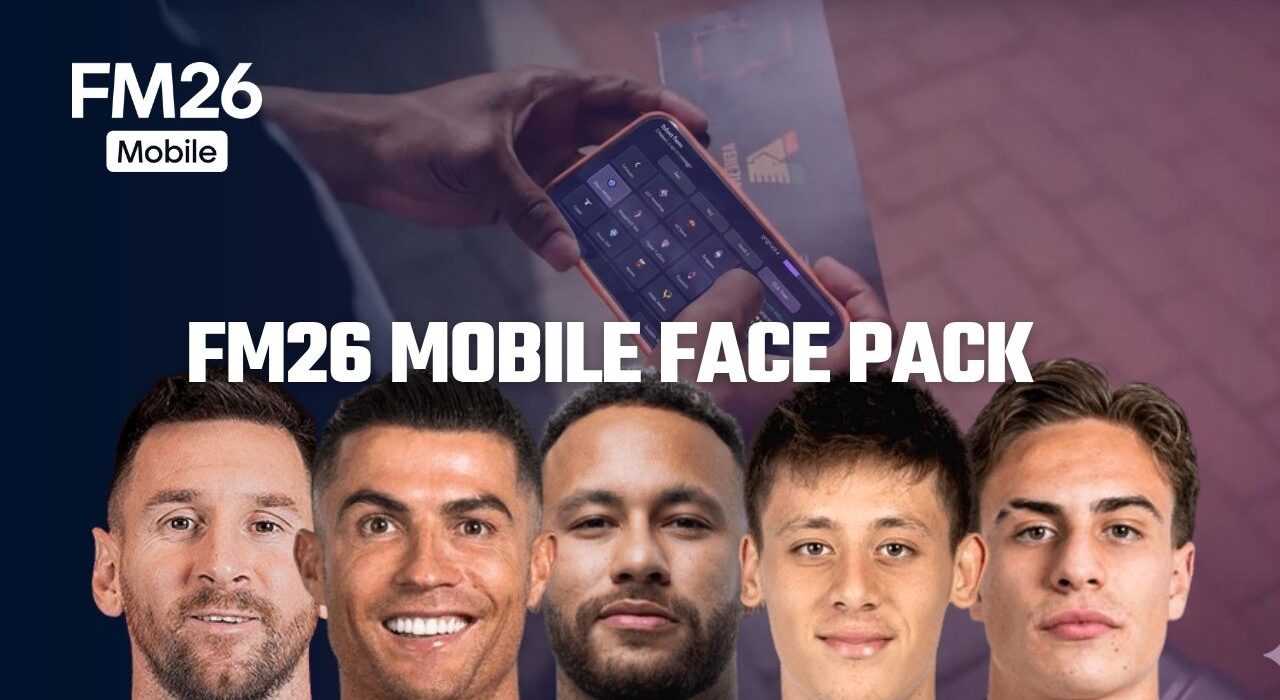
We continue sharing content for FM26 Mobile players without slowing down. This time, we’re bringing you one of the most searched patches: the FM26 Mobile face pack. Here are the full details and installation steps for the patch that adds cut-out style player profile images to your game.
It wouldn’t be wrong to say that one of the most searched topics for Football Manager 26 Mobile is the “FM26 Mobile Face Pack.” The cut-out style face pack—considered one of the best options available for FM26 Mobile—is regularly updated with the latest player photos, just like in the PC version of Football Manager 26.
When you start your career in FM26, you’ll quickly notice that many players don’t have profile pictures in the game. Just like in the PC version of Football Manager, you can improve the overall visual experience on the mobile version (especially on Android devices) by installing graphic packs.
Here are the installation steps and full details for adding the FM26 Mobile Face Pack to your game.
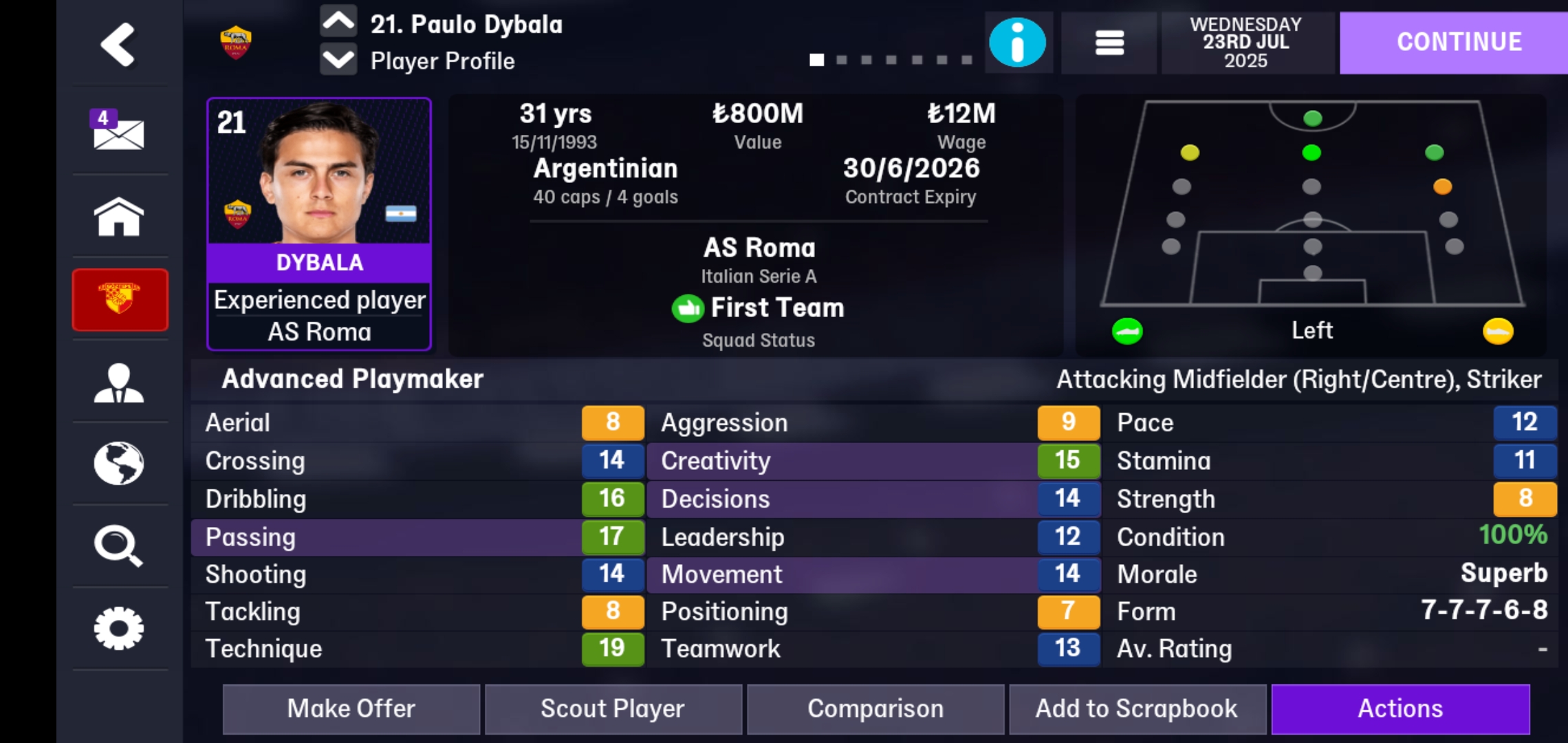
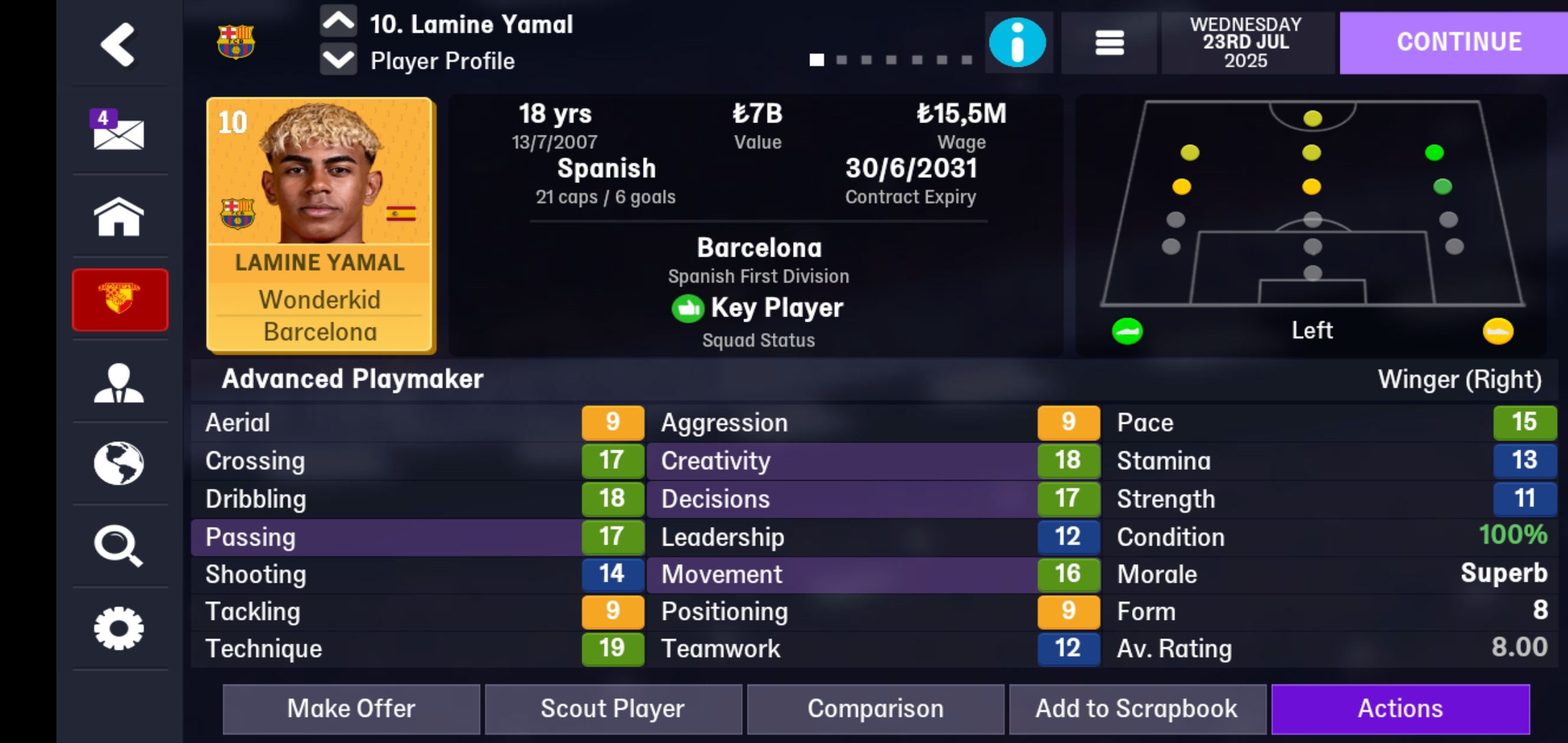
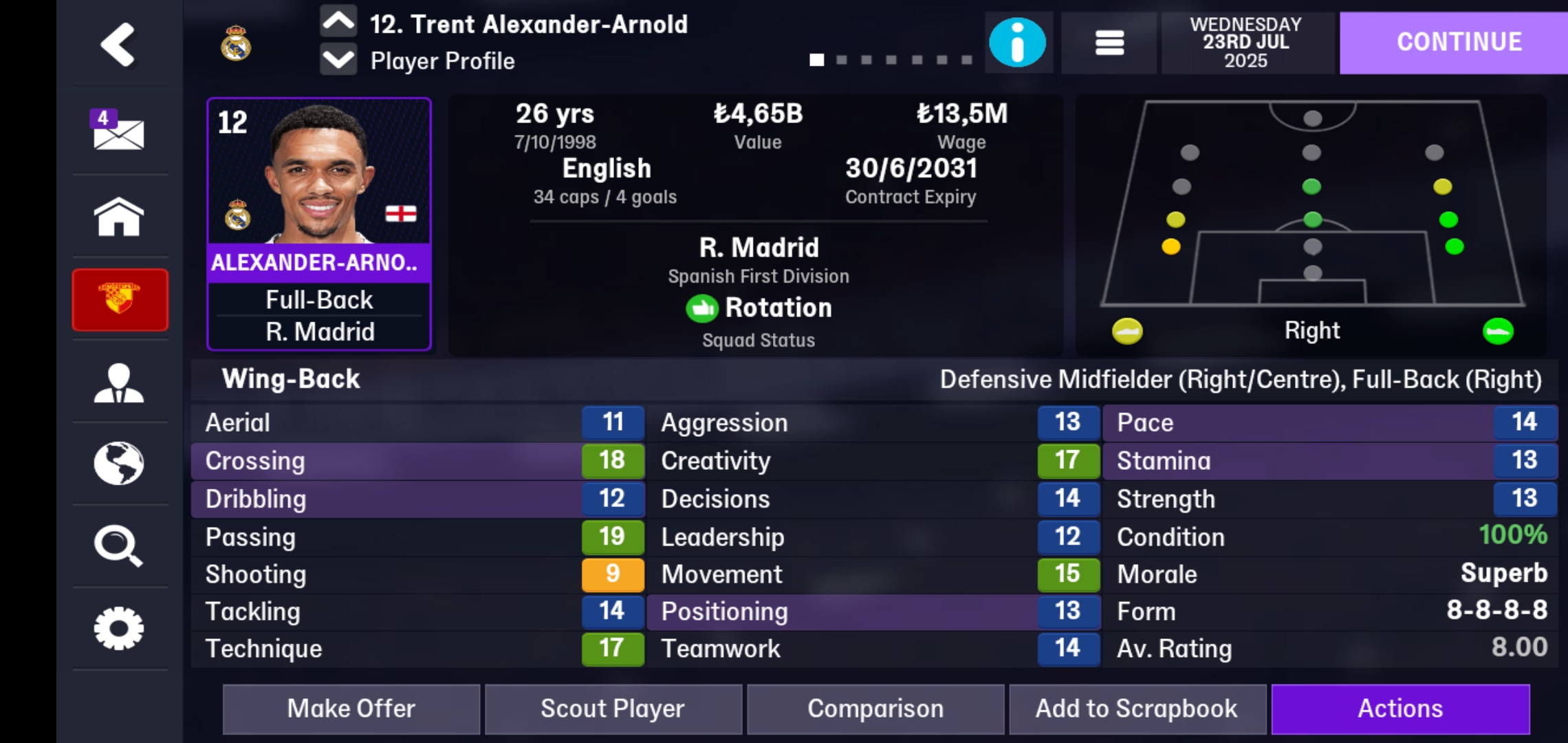
How to Install FM26 Mobile Face Pack (Step-by-Step Guide)
1) First, launch Football Manager 26 Mobile at least once. After downloading the game, don’t jump straight into installing the logo pack. Open the game once to allow all necessary game files to be created and installed on your device.
2) After entering the game, you don’t need to start a career. You can simply exit the game. (Make sure to fully close it and ensure it’s not running in the background.) Now, before moving on to the installation steps, let’s download the face pack.
Click here to download the FM26 Mobile face pack
3) We will explain the installation steps for Android phones that allow access to the phone’s file folders, such as Xiaomi.
For other Android phone brands, you need to use programs like Shizuku, ZArchiver, EX File Manager, etc., and enable developer options on your phone to install the patch. For example, if you are using a Samsung Galaxy S24, you first need to find out how to enable developer options on a Samsung Galaxy S24, and then download the Shizuku application and the ZArchiver/EX File Manager programs.
4) First, download the EX File Manager program from the Google Play Store for your Xiaomi device.
Click here to download the EX File Manager application
After downloading the EX File Manager app, log in. The app will request permission to access files on your phone. Grant this permission and continue with the installation.
5) In the EX File Manager app, tap the “Internal Storage” section in the upper left corner and press the “Download” folder.
6) In the Download folder, press and hold the “Facepack_Nov_Upd.fmf” file you downloaded for 2-3 seconds and press the “Cut” button that appears at the bottom.
7) Now it’s time to place the downloaded “Facepack_Nov_Upd.fmf” file in the game’s installation directory.
We will place the face pack in the Android/data/com.netflix.NGP.FootballManagerMobile/files directory.
Press the back button and return to the internal storage, the first directory where all the files on your phone are located. Here, tap the “Android” folder.
Inside the Android folder, tap the “Data” folder and find the “com.netflix.NGP.FootballManagerMobile” folder where the game is installed. Enter this folder.
Paste the “Facepack_Nov_Upd.fmf” file into the “Files” folder inside the com.netflix.NGP.FootballManagerMobile directory.
8) Now open Football Manager Mobile 26 and check if the face patch works correctly.
If the face patch doesn’t work, cut the “Facepack_Nov_Upd.fmf” file you copied to the “Files” folder and copy it again to the “Android/data/com.netflix.NGP.FootballManagerMobile/files/Application_Support/Sports Interactive/Football Manager/Caches” folder.
Now log back into the game and start using the face patch.
9) If your face pack still doesn’t work, you need to “Reload Skin” in-game. To do this, log into FM26 Mobile.
Press the “Settings” button. On this page, press the “View” button. In the menu that opens, select the “User Interface” menu. On the page that appears, press the “Reload Skin” button at the bottom.